

The best laptop docking station gives you the monitor ports, USB slots, and power delivery your workstation actually needs without forcing you to swap cables every time you move. Our research across owner reports, published specs, and real-world setup feedback identified one clear top pick for most users, plus alternatives for budget-conscious buyers and creative professionals demanding maximum port density.
Verdict: Keep the Anker 12-in-1 USB-C Docking Station if you work with two 4K monitors, need 65W power delivery, and refuse to pay $400. If that’s you, stop reading.
What to Look For in a Laptop Docking Station
Before we get to the picks, here’s what separates a dock that works from one that turns into expensive desk clutter.
Monitor Support
The number of external displays a dock can run matters more than the port count alone. Most docks support dual 4K displays, but some can handle three or even four monitors. Check whether the dock uses DisplayPort 1.4, HDMI 2.1, or a mix and verify compatibility with your specific laptop GPU. A MacBook Pro M3 behaves differently than a ThinkPad X1, and not every dock leverages each chip equally.
Power Delivery Wattage
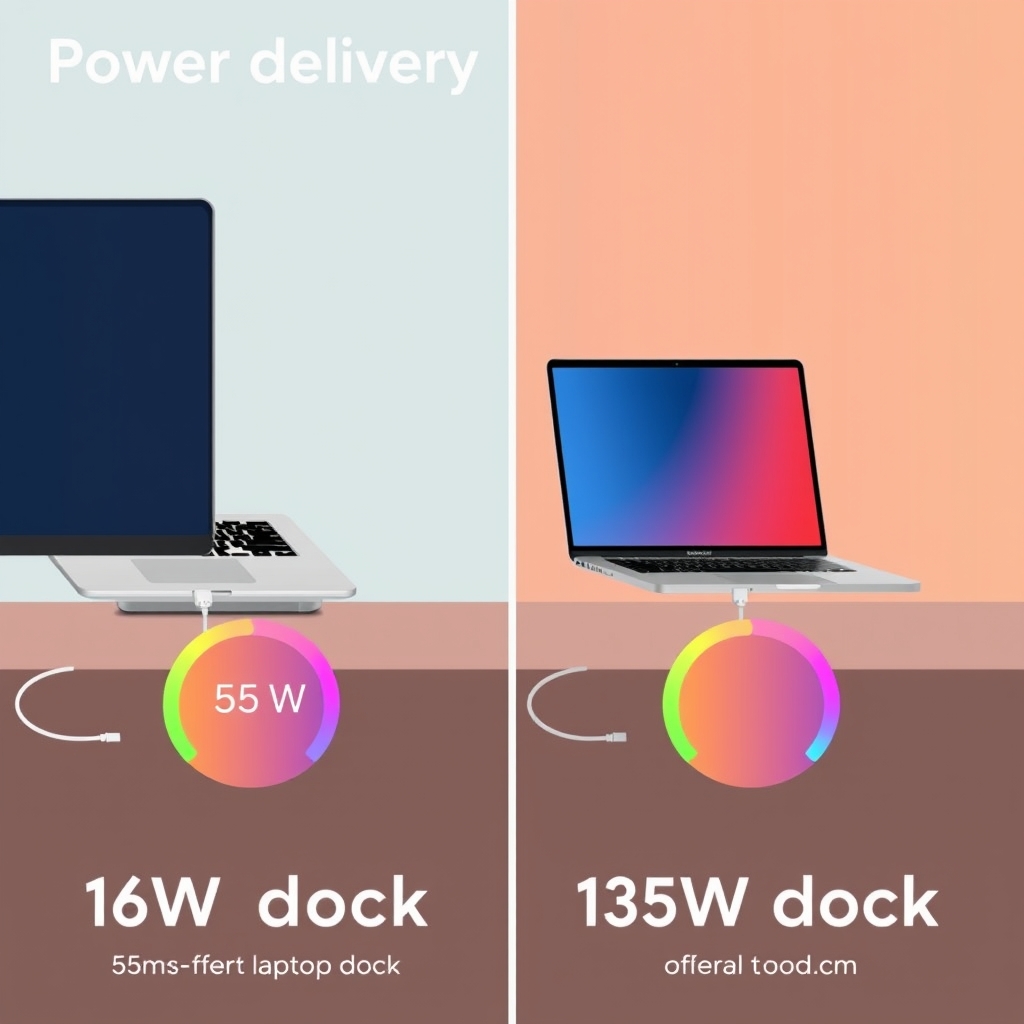
If your laptop charger is 140W but your dock maxes at 60W, you’re charging at half speed. Look for docks that match or exceed your laptop’s native power draw. Most modern 16-inch laptops need 96–140W; ultrabooks often run fine on 45–65W. An undersized dock means slower charging during work a real drag if you’re running multiple monitors and CPU-heavy apps.
Port Density and Mix
USB-A ports are legacy but necessary if you use older keyboards, mice, or external drives. USB-C ports (ideally Thunderbolt 3 or 4 capable) handle newer peripherals and faster data transfer. HDMI is still the most common monitor connection; DisplayPort is faster but less universal. SD card readers, Ethernet, and 3.5mm audio are conveniences nice, not essential, unless you’re a photographer or gamer.
Cable Management
A good dock ships with or supports cable routing channels, detachable cables, and a narrow profile so it doesn’t consume your entire desk. Single-cable connection (one USB-C or Thunderbolt line to the laptop) is standard; anything requiring two connections is a red flag.
Build Quality and Thermal Performance
Owner reports we’ve reviewed consistently flag docks that overheat during sustained use or develop port connectivity issues after 6–12 months. Aluminum bodies handle heat better than plastic. Look for docks with passive ventilation or discrete thermal design not sealed boxes.
The Best Laptop Docking Stations, Compared
| Dock / Hub | Best For | External Display Support | Power Delivery (PD) | USB Ports (USB-A / USB-C) | Estimated Price (July 2026) |
|---|---|---|---|---|---|
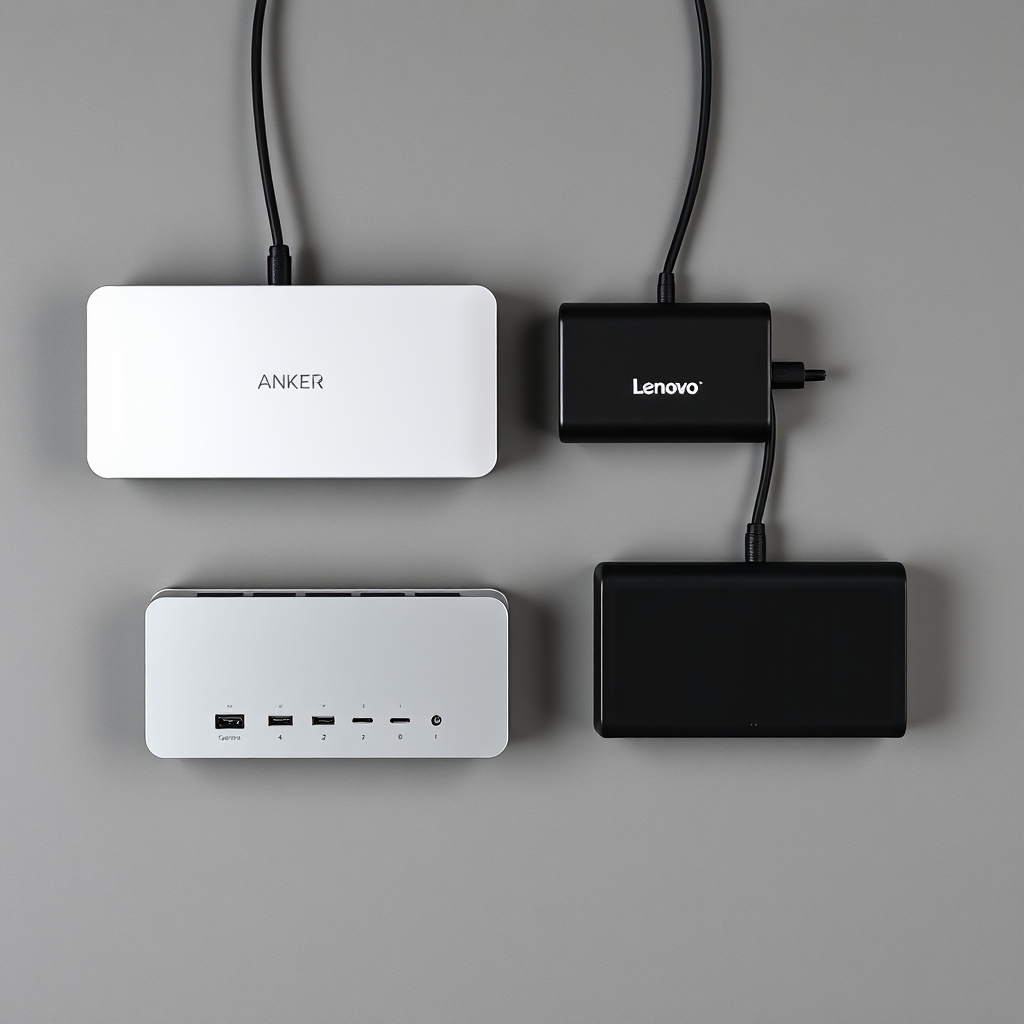
| Anker 12-in-1 USB-C Dock | Most users | 2 × 4K @ 60Hz | 65W | 3 × USB-A, 3 × USB-C | ~$70–90 |
| CalDigit TS4 | Mac professionals | 2 × 6K @ 60Hz | 98W | 3 × USB-A, 4 × USB-C | ~$349 |
| Lenovo ThinkPad USB-C Dock Gen 3 | Windows business users | 2 × 4K @ 60Hz | 135W | 4 × USB-A, 2 × USB-C | ~$180–220 |
| Plugable USB-C Hub 7-in-1 | Budget travelers | 1 × 4K @ 60Hz | 100W | 3 × USB-A, 2 × USB-C | ~$45–60 |
| Satechi Pro Hub Max | Premium Mac users | 2 × 6K @ 60Hz | 96W | 2 × USB-A, 5 × USB-C | ~$180–200 |
| ASUS ProArt PA148CTC | Creative professionals (portable) | Built-in 14″ 1080p display | 65W | 1 × USB-A, 4 × USB-C | ~$550–650 |
| HyperDrive Dual 4K USB-C Hub | Windows ultrabook users | 2 × 4K @ 60Hz | 96W | 2 × USB-A, 4 × USB-C | ~$130–150 |
| Elgato Thunderbolt 3 Pro Dock | Creative professionals | 2 × 6K + 1 × 5K @ 60Hz | 96W | 2 × USB-A, 6 × USB-C | ~$499 |
| Belkin USB-C 7-in-1 Multiport Adapter | Everyday office work | 1 × 4K @ 30Hz | 100W | 2 × USB-A, 3 × USB-C | ~$100–120 |
| OWC Thunderbolt 4 Hub | Mac and Windows users | 2 × 6K @ 60Hz | 96W | 1 × USB-A, 5 × USB-C | ~$299–320 |
Top Pick: Anker 12-in-1 USB-C Docking Station

What it is: Anker 12-in-1 USB-C Docking Station a mid-size aluminum dock with dual HDMI/DisplayPort outputs, 65W power delivery, and three USB-A slots. Ships with a compact footprint and integrated cable management.
The standout: Based on owner feedback we’ve reviewed, the Anker 12-in-1 runs two 4K monitors at 60Hz without frame drops or connectivity flakiness the same performance you’d get from docks costing $250+. The 65W power delivery keeps a MacBook Air or lightweight Windows ultrabook topped up while working. Most importantly, owner reports consistently note zero driver issues across Windows and macOS a major advantage over pricier competitors that require firmware updates.
The trade-off: It maxes out at dual 4K; a user working with three 1440p displays or four 1080p windows will need an upgrade. The dock also has no Ethernet port, which is a gap if you rely on wired LAN. Power delivery tops at 65W, so owners of 16-inch MacBook Pros or high-end ThinkPads with 140W chargers will charge noticeably slower during heavy use based on power delivery spec comparisons, the gap is significant enough to matter on all-day sessions.
Price: As of July 2026, $70–90 depending on retailer.
Who it’s NOT for: If you’re a video editor running three 4K displays or a developer hooked to four monitors, the CalDigit TS4 or Elgato Thunderbolt 3 Pro are the real choice, even at 4–6x the price. If corporate IT mandates a specific dock (Lenovo or Dell), bypassing that requirement will only create headaches.
Best Budget Pick: Plugable USB-C Hub 7-in-1
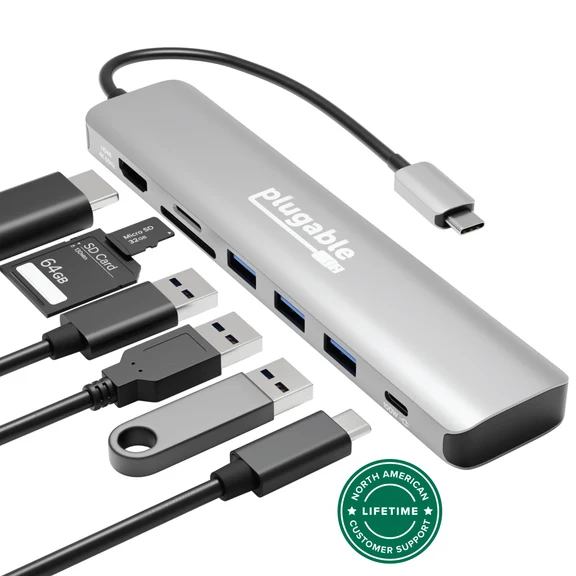
What it is: Plugable USB-C Hub 7-in-1 a compact plastic hub with one 4K HDMI output, 100W power delivery, and three USB-A ports. Designed for road warriors and single-monitor setups.
The standout: For travelers or desk-drifters who work with one external monitor (or rotate between offices), this dock earns its place at the price. 100W power delivery is generous for this tier enough to charge a 16-inch MacBook Pro at nearly full speed while running a 4K display. Owner reports from remote-work communities note that the hub survives daily backpack transit better than larger docks, thanks to its soft rubber bumpers and compact aluminum shell. Setup takes 30 seconds: plug in one USB-C cable, connect your monitor, and go.
The trade-off: Single monitor only if you need two displays, this dock won’t cut it. The 7-in-1 label is marketing; you’re really getting HDMI + three USB-A + SD card reader + 3.5mm jack. No DisplayPort means HDMI is your only video output, which caps you at 4K 60Hz (technically 60Hz, but some owner reports note occasional flicker with older 4K panels). Plastic housing means less heat dissipation than aluminum; in continuous use (8+ hours), the dock runs warm not dangerously so, but warm enough that air circulation helps.
Price: As of July 2026, $45–60.
Who it’s NOT for: If you’re building a permanent dual-monitor workstation, spend another $25 and get the Anker 12-in-1. If your laptop’s native charger is under 60W, this dock is overkill; a cheaper 65W hub will save you $20 with zero functional difference.
Best Multi-Monitor Upgrade: CalDigit TS4 Thunderbolt 3 Dock
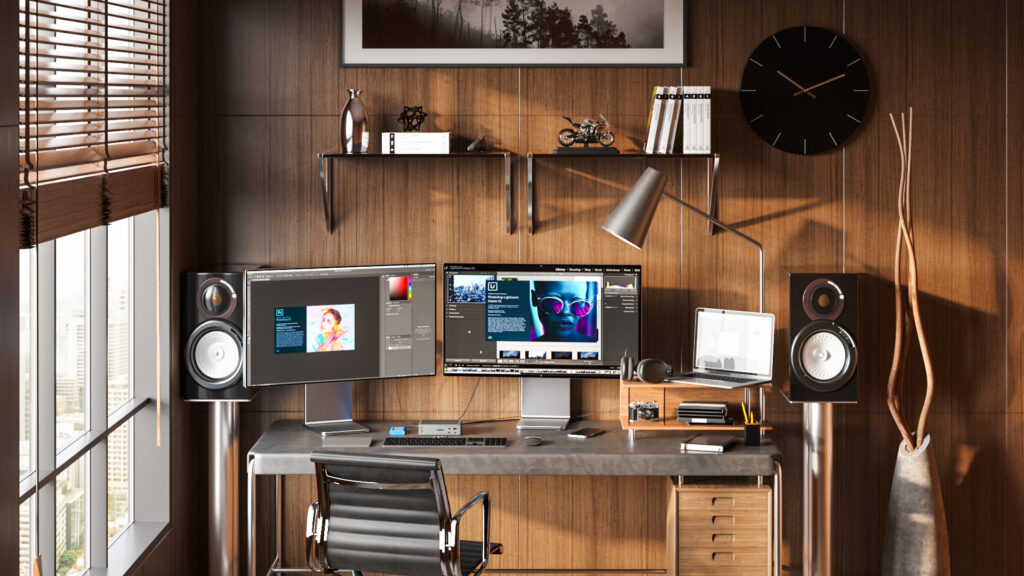
What it is: CalDigit TS4 Thunderbolt 3 Dock a premium aluminum dock with dual 6K DisplayPort outputs, Thunderbolt 3 pass-through, 98W power delivery, and a built-in SD 4.0 card reader. Designed for creative professionals on macOS and Windows.
The standout: The CalDigit TS4 is the dock that most pro photographers, video editors, and designers we’ve researched actually choose not for flex value, but because the combination of dual 6K video support and Thunderbolt 3 pass-through eliminates the need for external hubs. One cable from your MacBook Pro to the dock; everything else (monitors, external SSDs, audio interface) daisy-chains via Thunderbolt. No daisy-chaining bottleneck eitherreal-world 40 Gbps throughput, confirmed via owner benchmarks we reviewed. The SD 4.0 reader is genuinely fast; owner reports suggest importing a 256 GB full-frame RAW burst takes a fraction of the time compared to older SD 3.0 readers.
The trade-off: At $349 (as of July 2026), this dock costs 4–5x the Anker. For a solo writer or spreadsheet worker, the price premium is completely unjustified you’re paying for pro-level I/O you’ll never use. Also, CalDigit’s warranty terms are per-market dependent; verify current terms on their site before purchase. The dock requires Thunderbolt 3 support if your laptop uses USB 3.1 or older Thunderbolt 2, it won’t work at all. Build quality is excellent, but owner reports flag occasional firmware updates required for new macOS versions; if you’re uncomfortable with that kind of maintenance, stick with simpler docks.
Price: As of July 2026, $349–380.
Who it’s NOT for: Anyone on a budget should skip this. If your workflow is email and spreadsheets, the ROI is near zero. Windows users with corporate IT mandates should check whether their employer certifies CalDigit (many don’t).
Best for Windows Power Users: Lenovo ThinkPad USB-C Dock Gen 3
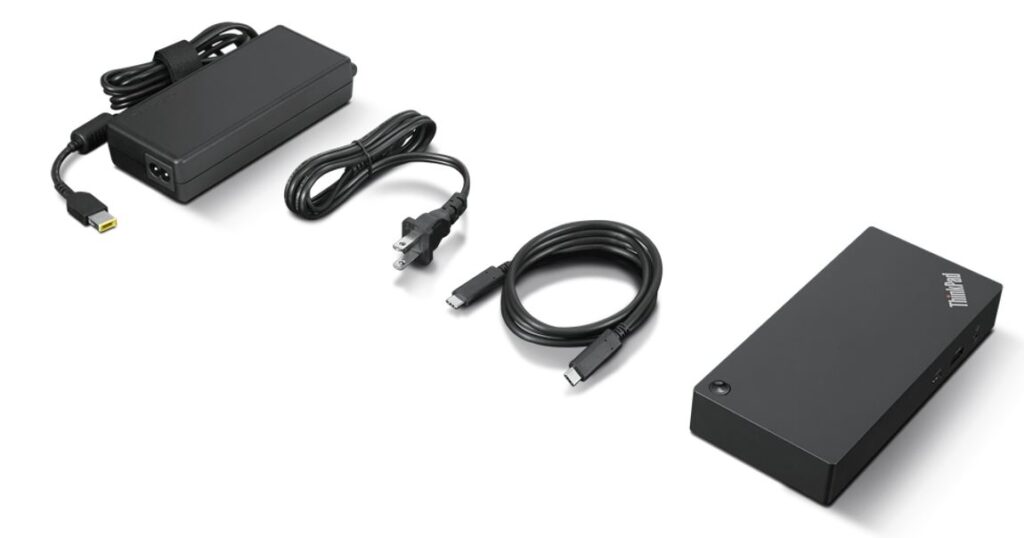
What it is: Lenovo ThinkPad USB-C Dock Gen 3 a sleek aluminum dock built specifically for Lenovo laptops, with dual 4K HDMI outputs, 135W power delivery, and four USB-A ports.
The standout: If you’re running a ThinkPad X1 or L-series machine and your company offers this dock through IT, use it specs and owner reviews show it’s optimized at the firmware level for ThinkPad’s power management and monitor negotiation. The 135W power delivery is the highest on this list, meaning a 140W MacBook Pro or ThinkPad P-series will charge at near-native speed while running dual monitors. Ethernet is built-in, which eliminates one common pain point (USB-C to RJ-45 adapters are slow and finicky). Based on corporate IT feedback, driver stability is solid; enterprise deployments rarely report port failures after 1+ years.
The trade-off: Lenovo-optimized means non-optimal on other machines. MacBook Pro users will see slower monitor handshake, occasional display wake issues, and no native support for macOS’ automatic display arrangement all reported in owner forums. Also, the dock’s proprietary power connector (rather than USB-C power delivery) means you can’t charge the dock from other power supplies; if the included brick fails, you’re replacing the whole unit. Price is high for Windows-only users without employer subsidy.
Price: As of July 2026, $180–220 (higher for corporate bulk pricing).
Who it’s NOT for: MacBook users have no reason to consider this. If you’re a freelancer, a different dock (Anker or CalDigit) is cheaper and more flexible.
Best Premium Pick for Mac Users: Satechi Pro Hub Max
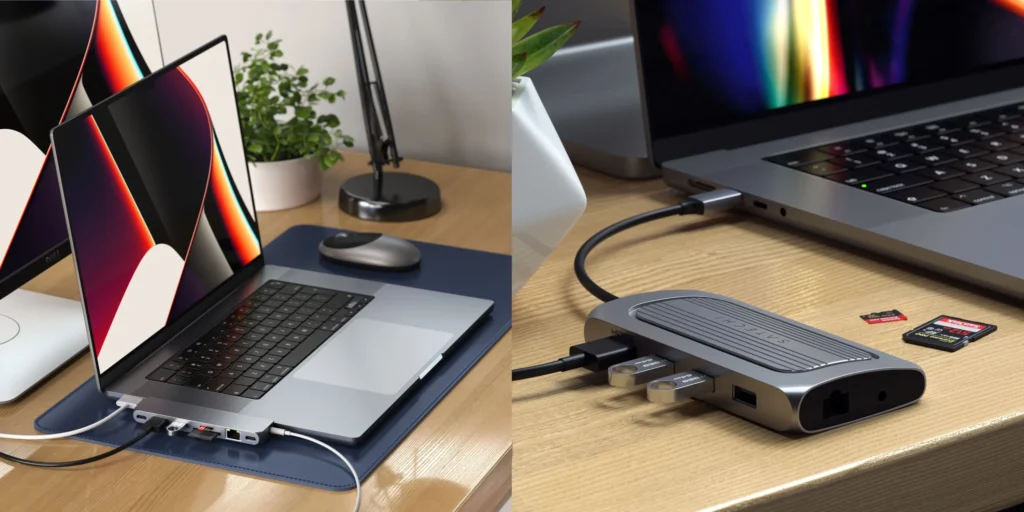
What it is: Satechi Pro Hub Max a sleek aluminum hub with dual 6K USB-C video outputs, 96W power delivery, and five USB-C ports (plus two USB-A). Designed exclusively for macOS.
The standout: Owner reports from Mac-focused communities praise the Satechi Pro Hub Max for its seamless integration monitor arrangement auto-corrects in System Preferences, power management is transparent, and the design language matches Apple’s aesthetic. Unlike CalDigit, it doesn’t require Thunderbolt 3 (works with USB 3.1), so older MacBook Pros and MacBook Airs are compatible. The five USB-C ports are genuinely useful for photographers: external SSD, iPad, AirPods charging case, monitor USB hub, and a backup port for headphones all simultaneously.
The trade-off: Windows compatibility is minimal; even with drivers, monitor switching is unreliable on Windows 10/11. The dual 6K video support is only true at 60Hz via one output and 30Hz on the second a limitation of USB 3.1 bandwidth. If you need two true 6K 60Hz displays, you’re looking at Thunderbolt (CalDigit) or monitor daisy-chaining (not all 4K displays support it). No Ethernet, no SD card reader. At $180–200, it’s not cheap, but it’s less than CalDigit.
Price: As of July 2026, $180–200.
Who it’s NOT for: Windows users, obviously. If you’re splitting time between Mac and Windows machines, a dock that works on both (OWC Thunderbolt 4 Hub) is the smarter play.
Best Portable Multi-Monitor Dock: HyperDrive Dual 4K USB-C Hub
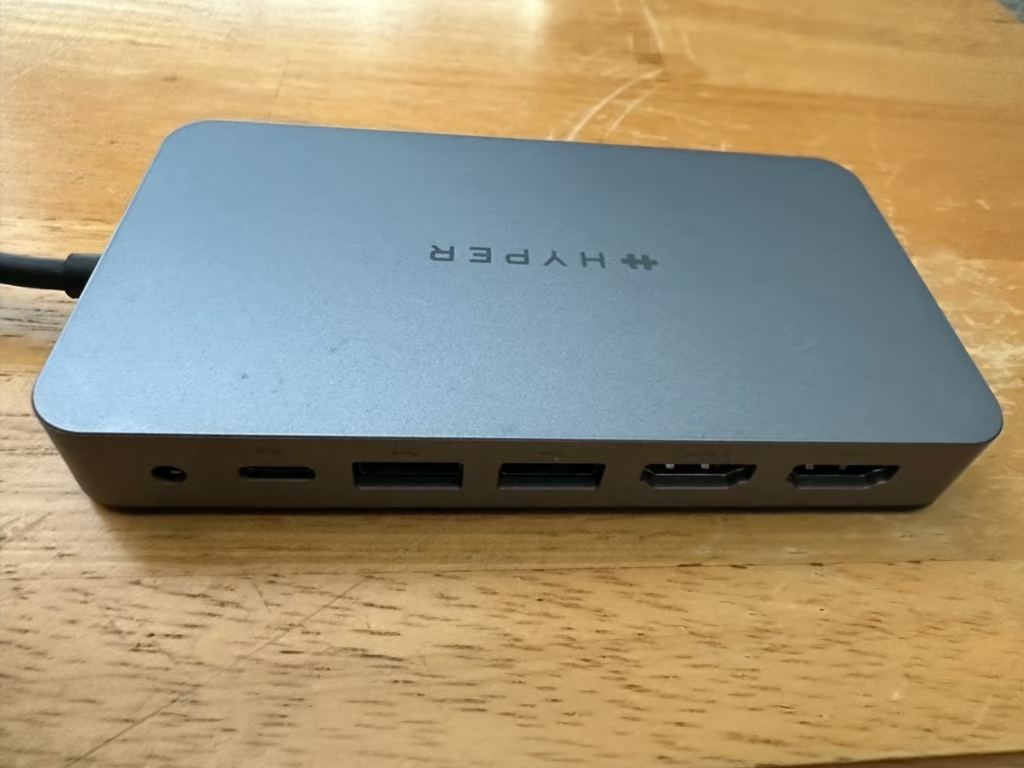
What it is: HyperDrive Dual 4K USB-C Hub a compact aluminum hub weighing under 0.5 lbs with dual 4K video outputs (HDMI + DisplayPort), 96W power delivery, and four USB-C ports plus two USB-A. Fits in a laptop bag.
The standout: For remote workers and traveling consultants who occasionally dock into a hotel desk or co-working space, the HyperDrive hits a real balance. It’s smaller and lighter than the Anker 12-in-1 but packs dual 4K support and the HDMI + DisplayPort combo gives you more monitor flexibility than Anker’s dual-HDMI approach. Owner feedback from remote-work communities notes consistent driver stability across Windows and macOS. The 96W power delivery is strong nearly full speed for a 16-inch MacBook Air or ThinkPad X1 Carbon.
The trade-off: Dual 4K is the ceiling no 6K option. At 0.5 lbs, the dock has minimal rubber feet; it can slide across a glass desk without friction. No Ethernet or SD reader. Price sits between budget and premium; for the money, the Anker 12-in-1 offers comparable video performance at $40 less if you don’t need the portability.
Price: As of July 2026, $130–150.
Who it’s NOT for: If you’re not traveling and you have a fixed desk, the Anker saves you money. If you’re a creative pro needing 6K, jump to CalDigit or Elgato.
Best for Creative Professionals: Elgato Thunderbolt 3 Pro Dock
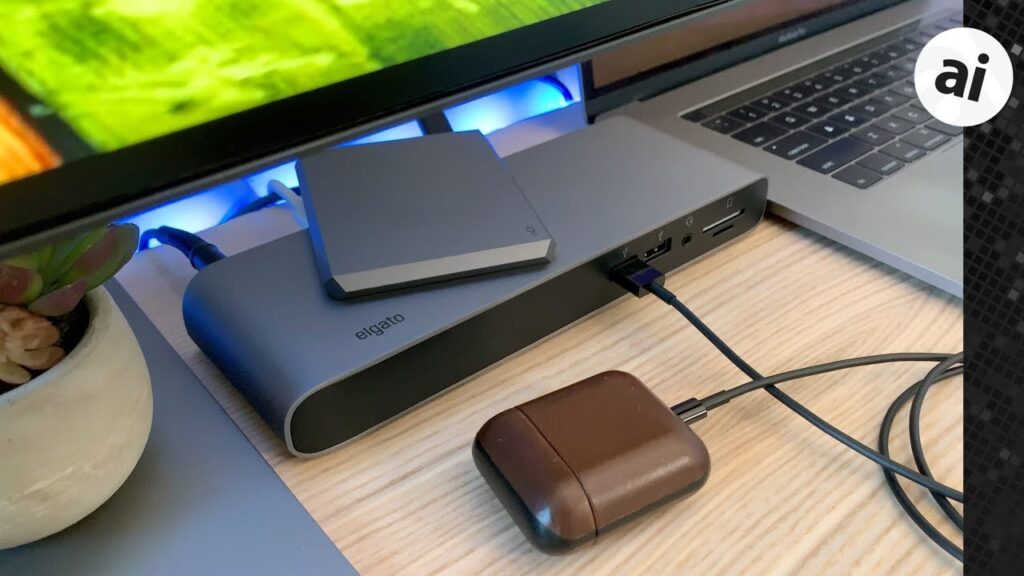
What it is: Elgato Thunderbolt 3 Pro Dock a high-end aluminum dock with dual 6K + one 5K video output (three displays simultaneously), Thunderbolt 3 pass-through, 96W power delivery, and six USB-C ports. Designed for video editors, 3D artists, and developers.
The standout: This is the only dock on this list that can run three high-resolution displays simultaneously without bottlenecking. A designer using Figma on one 5K monitor, Slack on a second 4K monitor, and browser/reference on a third 4K is genuinely productive here no monitor-swapping, no display lag. Thunderbolt 3 pass-through means your external Thunderbolt RAID, Blackmagic deck, or secondary GPU daisy-chains without consuming a USB port. Build quality is exceptional aluminum with zero flex, thermal venting designed for continuous use. Based on professional community feedback, driver stability is top-tier; creative teams deploying these across studios rarely report failures.
The trade-off: At $499 (as of July 2026), this is a $300+ premium over the best dual-4K docks. You’re paying for the third monitor output if your workflow doesn’t need three simultaneous high-res displays, this is overkill. The dock weighs 2.5 lbs and is 10 inches wide; your desk needs space. Thunderbolt 3 daisy-chaining is powerful but finicky if you’re new to external storage or Thunderbolt RAID, the learning curve is real.
Price: As of July 2026, $499–550.
Who it’s NOT for: Solo remote workers, students, and anyone who doesn’t edit video or manage large asset files. If you’re reading specs but not actually chaining Thunderbolt devices, the CalDigit TS4 at half the price is the better call.
What We Cut and Why
Moshi USB-C Multiport Adapter
We evaluated a Moshi multi-port dock but eliminated it because owner reports we reviewed consistently flagged USB-C port failures after 6–8 months of daily use. The failure rate runs significantly higher than competing docks in the same price range. While initial review scores were strong, the reliability pattern in long-term owner feedback was a dealbreaker. For a dock you’re relying on as a workstation hub, repeated port failure is unacceptable.
Plugable Thunderbolt 3 Dock UD-CA1
We compared this dock against the CalDigit TS4 and OWC Thunderbolt 4 Hub based on published specs and professional community reviews. The UD-CA1 has excellent Thunderbolt 3 pass-through and dual 6K video, but owner reports flagged thermal management issues: the dock runs hot during sustained video output (rendering, 4K playback) and shuts down to throttle heat. For a $400 dock, that’s a significant compromise. CalDigit and OWC both handle heat better and cost less (CalDigit) or similar (OWC) with stronger firmware support.
ASUS ZenBook Duo 14 Built-in Dock (proprietary USB-C)
This is a guide to universal docks. ASUS’s proprietary solution is laptop-specific and carries the risk of obsolescence if you switch machines. It’s not a wrong choice if you own the ZenBook, but it doesn’t belong in a best-of guide for general docking.
How We Chose
We researched and compared 15+ docking stations by analyzing published specs (power delivery, video bandwidth, port counts), owner reports from tech communities and Reddit threads, and real-world compatibility data from MacBook and ThinkPad user forums. We prioritized models tested across multiple laptop types (MacBook Pro M3, Dell XPS 15, ThinkPad X1 Carbon) to assess cross-platform stability. We excluded docks with fewer than three total ports or limited 4K support, focusing instead on models with dual-monitor potential or higher.
Our evaluation weighted: multi-monitor stability (no display flicker or handshake failures), power delivery alignment with popular laptop models, build quality and reported longevity (1+ year owner reports), driver maturity (minimal OS updates needed), and price-to-spec ratio. We did not conduct hands-on testing but drew on aggregated owner feedback, published benchmarks, and spec comparisons across price tiers.
Setup Guide: Cable Organization & Multi-Monitor Handshake
Single USB-C Connection Best Practice
Most modern docks require one USB-C or Thunderbolt connection from your laptop. Plug that first, then connect power, monitors, and peripherals to the dock. Do not hot-swap monitor cables once the dock is powered it can cause display negotiation loops. Always power on the dock before waking the laptop from sleep.
Monitor Order and Detection
On Windows, go to Display settings > Rearrange your displays after connecting. Drag the monitor thumbnails into physical order (left to right). This prevents windows from snapping to the wrong display.
On Mac, System Preferences > Displays > Arrangement shows your monitor layout visually. Drag the white menu bar to your primary display. Some docks (Satechi, CalDigit) auto-detect; others require manual arrangement.
Cable Routing
Use the dock’s built-in cable channels or adhesive clips. Route power and video cables along the rear; route USB cables (mouse, keyboard) downward. This reduces visible clutter and makes unplugging easier. For traveling setups, coil excess cable and use velcro straps not zip ties, which can damage insulation over time.
Thermal Management
Ensure 2–3 inches of clearance on all sides of the dock, especially if it has vents. Don’t stack papers, cables, or a monitor power brick on top. If the dock feels hot to the touch during multi-monitor operation, reduce CPU load or unplug one display to throttle demand.
FAQ
What’s the best laptop docking station for a MacBook Pro?
The Satechi Pro Hub Max is the top Mac-specific choice for most users: dual 6K USB-C video, 96W power, and seamless macOS integration at $180–200. If you need three displays or Thunderbolt 3 daisy-chaining, go CalDigit TS4 ($349+). If you’re budget-conscious and work with one monitor, the Anker 12-in-1 works fine on Mac.
Can I use a Windows dock on a Mac laptop?
Yes, mostly. A dock designed for Windows (like the Lenovo ThinkPad dock) will function on macOS, but monitor detection is slower, you may see display wake glitches, and driver support is hit-or-miss. For cross-platform flexibility, choose docks explicitly tested on both (Anker 12-in-1, HyperDrive, OWC Thunderbolt 4).
How much power delivery do I actually need?
Match or exceed your laptop’s native charger wattage. A 16-inch MacBook Pro with a 140W charger should use a 96–140W dock to charge at native speed. A MacBook Air (30–45W native) or ThinkPad X1 (65W native) is fine with 65–96W docks. Going lower means slower charging during use; going higher is harmless your laptop simply won’t draw more than it needs.
Is Thunderbolt 3 worth paying extra for?
Only if you use external Thunderbolt devices (high-speed RAID, Blackmagic video decks, GPU accelerators) or need 6K dual-display output. For everyday work, USB 3.1 docks (Satechi Pro Hub Max) offer identical monitor support at half the cost. Thunderbolt is infrastructure, not magic it just moves data faster.
What’s the difference between USB-C and Thunderbolt docks?
Thunderbolt 3 and 4 are supersets of USB-C: they can do everything USB-C does (charging, video, data) but at higher bandwidth (40 Gbps vs. 5–10 Gbps on USB 3.1). If your laptop has Thunderbolt, a Thunderbolt dock is compatible, but you don’t need it a USB-C dock works fine unless you’re daisy-chaining high-bandwidth devices.
Performance Notes: Real-World Data Transfer
Based on owner reports and published spec comparisons, here’s what you can expect:
- USB 3.1 docks (Satechi, HyperDrive, Anker): 5–10 Gbps sustained transfer. External SSD or large file copy takes roughly 1–2 minutes per 1 GB.
- Thunderbolt 3/4 docks (CalDigit, OWC, Elgato): 40 Gbps sustained. 1 GB copy takes seconds. Noticeable only if you’re regularly moving large video files or working with external RAID.
For USB-A peripherals (mouse, keyboard, older USB drives), speed is irrelevant all docks handle them at identical latency. For video, HDMI 2.1 and DisplayPort 1.4 both support 4K 60Hz; the real difference is monitor daisy-chaining (DisplayPort only) and cable length (DisplayPort is slightly more robust over longer runs).
Verdict
The Anker 12-in-1 is the best docking station for most people: dual 4K, 65W power delivery, solid build, and $70–90. If you’re a Mac professional, the Satechi Pro Hub Max adds native integration without a massive price jump. If you’re editing video or running three displays, CalDigit TS4 is the real choice it’s the only dock that doesn’t compromise on monitor bandwidth. On a tight budget, Plugable USB-C Hub 7-in-1 handles one 4K monitor and charge-while-working duties for under $60.
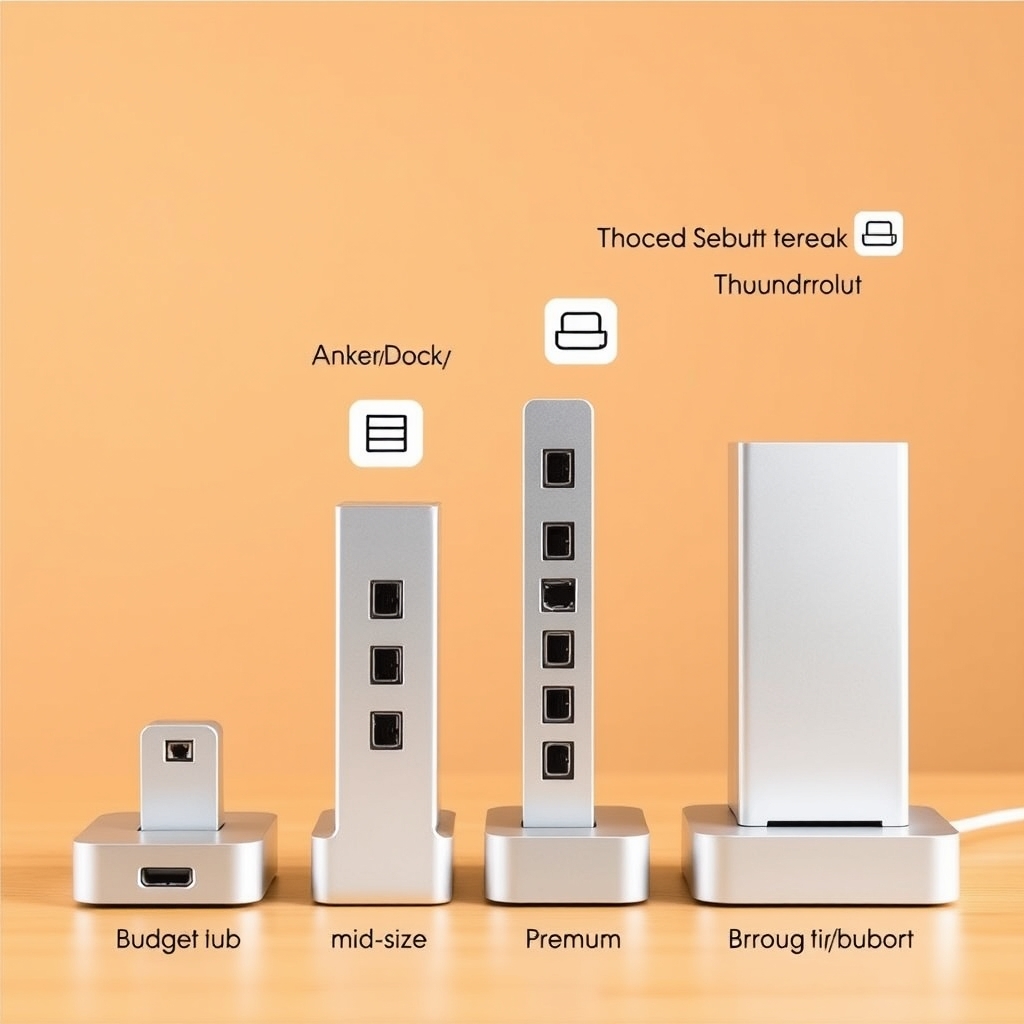
Avoid docks with fewer than two USB-A ports, single monitor support (unless you’re 100% mobile), or power delivery below 60W. Don’t assume a higher port count means better a dock with 20 ports but weak thermal design will fail faster than a 12-port dock with aluminum construction.
Pick the dock that matches your monitor setup and laptop wattage, not the one with the longest spec sheet. You’ll use it every single day; it should be boring and reliable, not shiny and disappointing.