

Smart Home Security Integration: How to Choose Locks, Cameras & Sensors
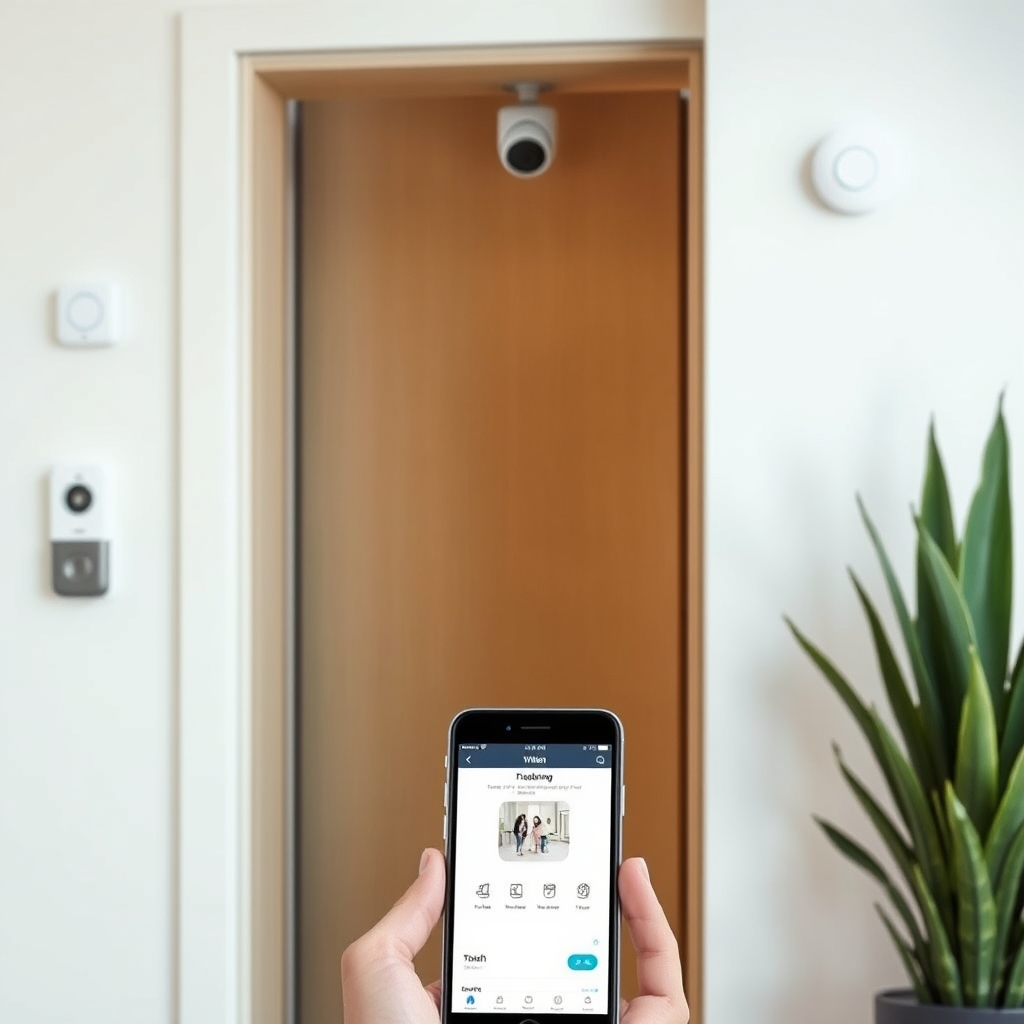
Smart home security integration means connecting your door locks, cameras, motion sensors, and other devices into a single unified system so you can monitor and control them all from one app instead of juggling five different ones. The right integration saves you money on per-device cloud subscriptions, cuts down on notification overload, and lets your devices trigger each other a motion sensor outside can unlock a specific smart lock, or a break-in alert can trigger your cameras to record and send clips to your phone. For most people, the move is simple: pick an ecosystem first (Google Home, Apple HomeKit, or Amazon Alexa), then buy locks and cameras that work natively with that platform. This guide teaches you what actually matters when choosing security devices and how to avoid the ecosystem mistakes that lock you out of future gear.
What Actually Matters in Smart Home Security Integration
1. Ecosystem Compatibility (Non-Negotiable)
This is the single biggest decision you’ll make more important than any individual device’s specs. An ecosystem is the software backbone that lets all your devices talk to each other and to you. The three dominant ecosystems are Google Home, Apple HomeKit, and Amazon Alexa. Not all smart locks and cameras work with all ecosystems, and buying a device that doesn’t support your chosen system means it won’t integrate with your other gear.
What to look for: Before you buy a single device, decide which ecosystem matches your household. If everyone in the home uses iPhones and Macs, Apple HomeKit is the simplest choice HomeKit devices are also generally well-encrypted by design. If you already have Google Home speakers or Android phones, Google’s Nest ecosystem is well-integrated and often cheaper. Amazon Alexa has the broadest third-party support, so if you want maximum flexibility to mix brands, Alexa works with more devices than either alternative. Once you pick one, only buy devices that explicitly list that ecosystem as supported not “compatible,” not “integrates via,” but natively supported.
What to ignore: Brand loyalty. Arlo, Wyze, and Ring cameras are popular, but not all of them support HomeKit natively (Ring is Alexa-only unless you add a bridge). You might love a specific camera, but if it doesn’t support your ecosystem, it will be a pain to use in practice.
2. Local vs. Cloud Control (Safety and Reliability)
When you unlock your smart door lock or view your camera, the command travels somewhere either to a computer in your home (local) or to the company’s servers in the cloud (cloud). Local control is faster and works even if your internet goes down. Cloud control requires an internet connection but lets you check your cameras from anywhere.
What to look for: For door locks, always choose local control. If your internet fails and your lock is cloud-only, you could be locked out of your own home. Most modern smart locks (Yale, Schlage, Eufy) support local control via HomeKit or Google Home. For cameras, cloud backup is useful so you have footage if someone steals the camera but local recording is better. It means footage is stored on a device in your home, not on a subscription service. Systems like Wyze and Eufy offer local storage options that cost nothing after the initial hardware purchase.
What to ignore: The marketing claim “works anywhere.” That’s cloud-speak. What you actually want is local control plus cloud access not one or the other.
3. Professional Monitoring vs. Self-Monitoring
Professional monitoring means a service calls the police if your alarm triggers. Self-monitoring means you get alerts on your phone and you decide what to do. Most smart home systems are self-monitoring, but some (Vivint, ADT) offer professional monitoring as an add-on.
What to look for: If you want professional monitoring and your homeowner’s insurance gives you a discount for it, the monthly cost as of August 2026, plans commonly run $15–$30 per month may be worth it. Most DIY smart home security setups use self-monitoring, which is free but requires you to be responsive. Decide upfront which approach you want, because some systems don’t easily add professional monitoring later.
What to ignore: The idea that smart home security replaces a traditional alarm system. Smart home gear is better for some people, but it’s a different tool. If professional monitoring and police dispatch are non-negotiable for you, price that component early.
4. Video Quality and Storage
A 1080p camera is standard; 2K and 4K are sharper but use more storage and bandwidth. More important than resolution is frame rate (how many frames per second the camera captures) and whether the system offers 24/7 recording or event-only recording.
What to look for: Event-only recording (triggered by motion or a detected person) is cheaper and easier to manage you get a clip when something happens, not hours of empty hallway footage. 1080p is sharp enough to recognize a face at 10 feet; 2K is noticeably better if you need to read a license plate, but it costs more. Check whether the system stores video locally (on a base station or NVR), in the cloud (monthly subscription), or both. Local storage is cheaper long-term but requires a device in your home; cloud storage is more convenient but charges per month.
What to ignore: “4K for security.” Facial recognition and person detection work fine at 1080p. 4K is a marketing spec that doesn’t improve detection in practice you’re paying for resolution you’ll rarely need.
5. Open vs. Closed Ecosystems
A closed ecosystem (Apple HomeKit) only works with HomeKit-certified devices. An open ecosystem (Amazon Alexa, Google Home) works with many brands, including some that don’t natively support it if you use a bridge device. Closed ecosystems are simpler and more secure; open ones give you more choice.
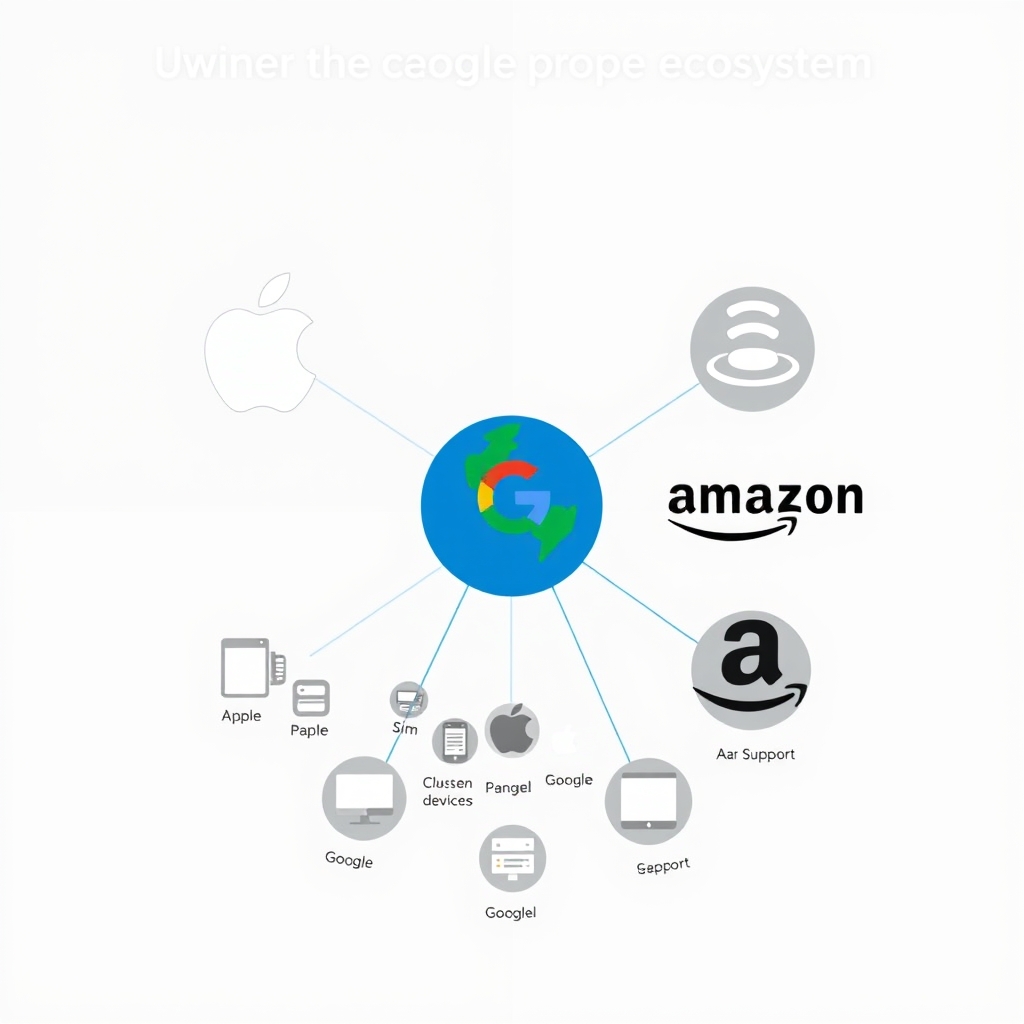
What to look for: If you want a simple, cohesive system and you’re willing to pick from a narrower device catalog, HomeKit is cleaner. If you want maximum flexibility and don’t mind managing more moving parts, Alexa or Google Home is more forgiving. Most people land somewhere in the middle: a primary ecosystem (Google Home) with one or two devices that don’t natively support it but work via a secondary app.
What to ignore: The idea that you must choose only one ecosystem. You can run HomeKit locks alongside Alexa cameras, but you’ll be opening multiple apps. Most people find that frustrating after a few months, so pick a primary system and keep everything else in the minority.
6. Installation and Wiring
Some smart locks and cameras require professional installation or complex wiring. Others you can install in 10 minutes. This matters more than people expect, especially if you rent or dislike DIY projects.
What to look for: Battery-powered smart locks (Yale Assure, Schlage Encode) install in minutes and don’t require wiring. Hardwired cameras require running cable through walls, which is a real project. Battery cameras (Wyze, Eufy, Blink) are easier but need regular charging or battery swaps. If you’re renting, avoid anything that requires permanently modifying the door or routing cables through walls.
What to ignore: Professional installation as a selling point. It’s convenient, but it adds $200–$400 to the bill. Most smart locks and cameras are designed for DIY if installation is a pain, that’s a design flaw, not a premium service.
Price Tiers and Where the Value Sits
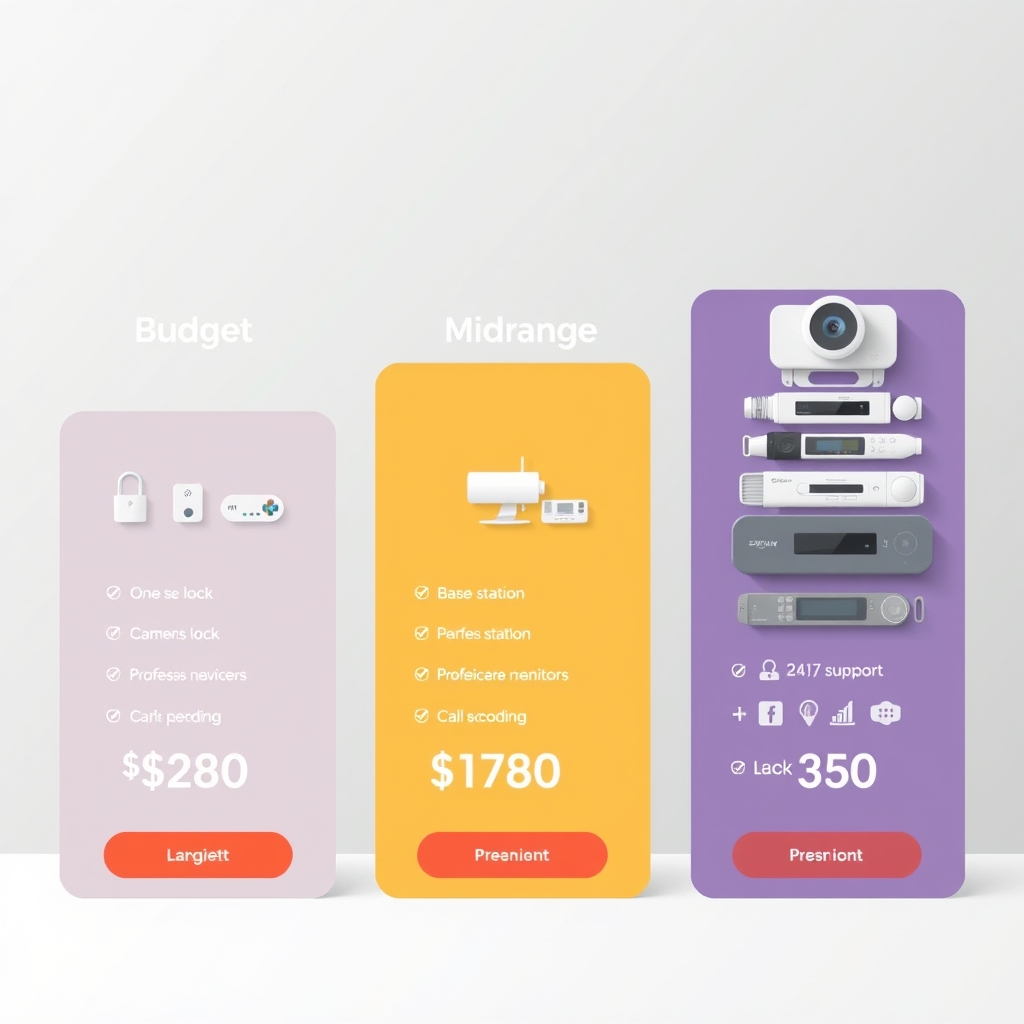
Budget tier (around $200–$500 total, based on commonly reported retail pricing as of August 2026): A basic system with one smart lock and one or two cameras, self-monitoring, and cloud storage. Brands like Wyze and Eufy live here. You’ll pay a small monthly fee for cloud storage ($5–$10), but the hardware is affordable. This tier is ideal for renters or people testing smart security for the first time.
Mid-range tier ($500–$1,500): Multiple devices lock, two or three cameras, motion sensors with local recording options and native ecosystem support. Yale, Schlage, Logitech, and mid-range Google Nest products fit here. You’re paying for integration and longer-term reliability; a well-chosen mid-range system should last five-plus years without constant firmware headaches.
Premium tier ($1,500–$3,500+): Professional-grade systems with hardwired installation, local recording on a dedicated base station, professional monitoring options, and 24/7 support. Vivint, Ring Pro, and high-end HomeKit systems live here. The value is in reliability, local storage, and peace of mind not in additional features.
Where the value sits: Mid-range is the sweet spot for most households. Budget systems work fine initially but often nickel-and-dime you on cloud storage and lack important features like local recording. Premium systems over-deliver for typical homes; you’re paying for professional monitoring and installer support that most people don’t need.
Common Mistakes to Avoid
Buying a Fancy Camera for a Poor WiFi Network
A 4K camera does you no good if your WiFi can’t stream it. Before upgrading cameras, upgrade your network. A mesh WiFi system ($150–$300) will solve most camera quality and dropout issues.
Mixing Ecosystems Without a Plan
One HomeKit lock and one Alexa camera might seem fine, but after a month you’ll be opening two apps constantly. If you’re going to mix ecosystems, do it deliberately: one primary system (where 80% of your devices live) and a secondary system for specific products you prefer. Use automation rules to make them talk where possible.
Skipping the Local Storage Question
If you rely entirely on cloud storage and that service gets breached or shuts down, your footage is gone. Always have a local backup: either a camera with local recording, or a base station (like a dedicated NVR) that keeps footage on-device.
Buying Without Checking Installation Requirements
A smart lock that requires running new wiring or replacing your entire door frame isn’t a good deal, no matter how cheap it is. Watch the install video before you buy.
Assuming All Wireless Sensors Have the Same Range
Some motion sensors and door sensors work at 30 feet; others reach 100 feet. If your garage is far from your router, check the range spec before you buy. “Works with WiFi” doesn’t mean long-range some systems use Zigbee or Z-Wave, which are shorter-range protocols but often more reliable for security use.
Our Keeper: Full Buyer’s Roundup
For the complete breakdown of the best smart locks, cameras, and integration systems for each ecosystem and budget, see our full smart home security buying guide on KeptList. We’ve researched and compared hardware across HomeKit, Google Home, and Alexa so you can see exactly which devices play well together and which ones to avoid.
FAQ
Do I need a security system base station or hub?
No, not always. If you’re using Google Home or Alexa, a smart speaker serves as a hub. If you’re using HomeKit, an Apple TV, HomePod, or iPad acts as the hub. Some systems (like Logitech Circle View) require a dedicated base station for local recording. Check the device’s requirements before you buy.
Can I add devices to my system later without replacing everything?
Yes, if you stick to one ecosystem. Once you’ve chosen HomeKit, Google Home, or Alexa, adding new compatible devices is seamless. The problem comes when you add a device from a different ecosystem it will work, but the integration will be clunky.
What happens to my smart lock if my internet goes down?
If your lock supports local control (which all good ones do), you can still unlock it with your physical key or keypad code. Remote access via your phone will be unavailable, but the lock itself stays functional. This is why local control is non-negotiable for locks.
Is HomeKit more secure than Alexa or Google Home?
HomeKit uses end-to-end encryption by default, and Apple states that HomeKit Secure Video footage is processed on your home hub and is not accessible to Apple check Apple’s current privacy documentation for specifics. Google Home and Alexa are less privacy-forward but have been improving steadily. All three are meaningfully more secure than an unpatched traditional alarm system because of regular software updates. Choose based on your ecosystem fit, not on security alone; all three are adequate for home use.
How much does cloud storage typically cost?
As of August 2026, based on commonly reported retail pricing, cloud storage for security footage usually runs $5–$15 per month per camera, or $20–$50 per month for unlimited storage across all devices. Local storage (on a base station or NVR) costs nothing after the hardware purchase, making it cheaper long-term if you have multiple cameras.
Can I use smart home security without a subscription?
Yes, but with limits. Cameras will work locally (you can see a live feed at home), but cloud backups, remote access, and person detection often require a paid plan. Motion sensors and locks rarely require subscriptions. If you want zero monthly costs, choose systems with local recording Wyze with a microSD card or Eufy with a base station and skip the cloud features.