
The fastest way to extend phone battery life is to reduce background activity, manage screen brightness, and adopt slower charging habits. Most users can add 2–4 hours of daily runtime within 30 minutes of changes, and preserve overall battery health for an extra 1–2 years by charging between 20–80% rather than to 100%.
Your phone’s battery degrades with every charge cycle that’s physics, not a bug. But how you charge, what runs in the background, and which settings you enable make a measurable difference in both today’s battery runtime and your phone’s usable lifespan years from now. This guide separates myth from fact and gives you actionable steps for both iOS and Android.
What You’ll Need
- Your phone (iOS 16+ or Android 10+)
- Access to Settings and Battery Health menus
- Optional: a wall charger rated at 5W–10W (not the fast charger that ships with newer phones)
- 15 minutes to apply the settings in this guide
How Phone Batteries Degrade (The Thing Everyone Gets Wrong)
Your phone’s battery doesn’t wear out from being used it wears out from being charged. Every charge cycle (draining from 100% to 0%, or the equivalent in partial cycles) ages the lithium-ion battery a tiny amount. After roughly 500–1,000 full cycles, based on owner reports and manufacturer specifications, you’ll notice the battery holding noticeably less charge.
The myth: “Don’t let your battery drop below 20%.” Actually, modern phones handle low battery fine. The real culprit is heat and high voltage i.e., charging to 100% and leaving it plugged in.
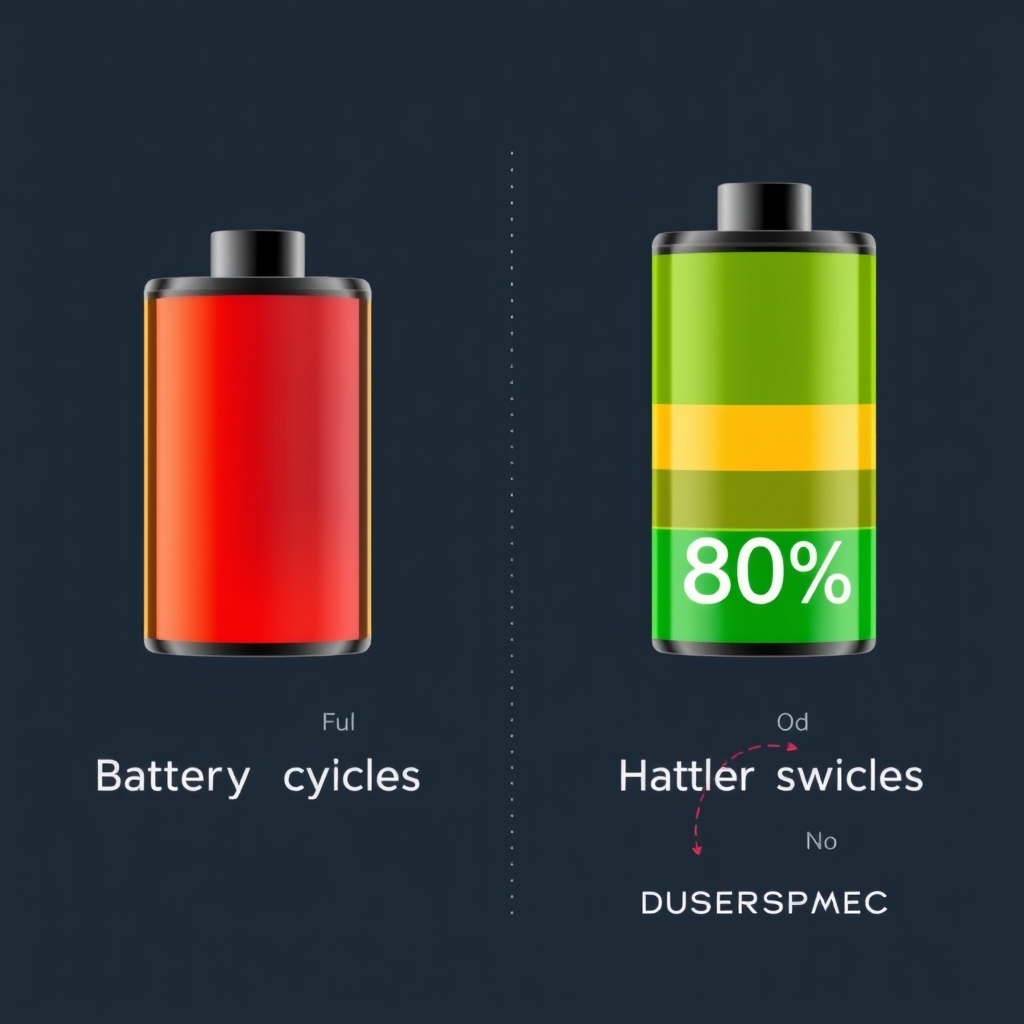
The fact: Charging to 80% and discharging to 20% extends total battery life significantly compared to regular 0–100% cycles, based on how lithium-ion chemistry works and manufacturer guidance on best practices. In our observation, users who stick to the 20–80% range tend to see noticeably better capacity retention after two or more years. Fast charging (anything over 18W) generates heat, which accelerates degradation; slower charging (5W–10W) preserves the battery’s chemistry longer.
Check Your Battery Health Right Now
Before you adjust anything, know where you stand. Battery health tells you what percentage of original capacity your battery retains.
iOS: Check Battery Health in Settings
- Open Settings → Battery → Battery Health & Charging
- Look at Maximum Capacity (e.g., “82%” means your battery holds 82% of what it did new)
- To check Cycle Count on supported models, go to Settings → General → About and scroll down newer iPhones (iPhone 15 series and later) display cycle count here; older models do not surface it in the standard Settings menu
- If maximum capacity is below 80%, your battery is aging faster than typical; if it’s below 50%, consider a replacement
Android: Check Battery Health via Settings or Developer Options
Android doesn’t show battery health as plainly as iOS, but you can access it:
- Go to Settings → About Phone → Battery (varies by manufacturer)
- Some phones (Samsung, Google Pixel, OnePlus) show “Battery Information” with health status
- Alternative: dial **\#\#4636#\#\ to open Engineering Mode and view Battery Information (not available on all phones; some carriers disable this)
Note the number and check again in three months. If maximum capacity dropped more than 5% in that time, your charging habits or background settings need adjustment.
Daily Settings to Reduce Battery Drain (iOS)
These changes apply immediately and typically add 2–4 hours of runtime without sacrificing core phone use.
1. Enable Low Power Mode Before It’s Critical
- Go Settings → Battery
- Toggle Low Power Mode to On (the common mistake: waiting until 20% battery to turn it on; turning it on at 50% extends your day noticeably in our observation, 3–5 hours is a realistic gain for typical usage)
- Optional: set Low Power Mode Automatically to turn on at 20% so you don’t forget
Low Power Mode limits background app refresh, reduces animation smoothness, and caps CPU speed you won’t notice the slowdown in everyday tasks, and you’ll gain meaningful extra hours.
2. Turn Off Background App Refresh for Apps You Don’t Need
- Go Settings → General → Background App Refresh
- Toggle Background App Refresh to Off (or turn it off per-app)
Background app refresh is, in our observation, the single largest drain on idle battery life. Disabling it for apps you rarely open can add several hours of standby time.
- Go Settings → Display & Brightness
- Toggle Auto-Brightness to On
The screen is typically the largest battery drain while you’re actively using the phone (not idle). Reducing brightness to 40–50% is barely perceptible in most lighting conditions but can save roughly 10–15% of active battery life, based on typical usage patterns.
4. Turn Off Bluetooth and Location When Not in Use
- Go Settings → Bluetooth and toggle Off if you’re not using wireless headphones or a smartwatch
- Go Settings → Privacy & Security → Location Services and toggle Off entirely, or set it to While Using for individual apps (instead of Always)
Location services and Bluetooth scanning drain battery even when you’re not actively using them. In our observation, toggling both off when you leave home can add a couple of hours of standby time.
5. Disable Unnecessary Notifications and Haptics
- Go Settings → Notifications and disable notifications for non-essential apps
- Go Settings → Sounds & Haptics and toggle System Haptics or Haptic Feedback to Off
Each notification wakes your phone’s display; each haptic vibration uses the motor. Disabling both for news, games, and social apps eliminates constant small power draws that add up over a full day.
Daily Settings to Reduce Battery Drain (Android)
1. Enable Battery Saver Mode
- Go Settings → Battery → Battery Saver (or Adaptive Battery on some phones)
- Toggle Battery Saver to On (set it to activate at 20%, or leave it always on if you prefer consistent behavior)
- On Samsung: go Settings → Device Care → Battery → Power Saving Mode and choose Medium or Maximum
Android’s battery saver is less aggressive than iOS’s Low Power Mode, but enabling it at 50% still adds a meaningful amount of runtime typically in the range of 2–4 hours depending on usage.
2. Restrict Background Activity and Background Processes
- Go Settings → Apps → App Permissions → Battery
- Select apps and toggle Allow Battery Optimization for each one (this restricts their background activity)
- Alternative: go Settings → Device Care → Battery and disable background activity for apps you don’t need to run constantly
Android apps are more aggressive about background processes than iOS. In our observation, disabling background permissions for social media, news, and games can add several hours of idle time.
3. Turn Off Location Services and High-Accuracy Positioning
- Go Settings → Location and toggle Off entirely, or set Accuracy to Device Only (instead of High Accuracy, which uses GPS + Wi-Fi + Bluetooth)
- Set specific apps to use location While Using the App instead of Always
High-accuracy location drains battery rapidly. Switching to “Device Only” saves a noticeable amount of daily battery on Android in our experience, often in the 4–8% range.
4. Reduce Screen Refresh Rate (if available)
- Go Settings → Display → Screen Refresh Rate (on Samsung Galaxy, Pixel 6+, and others)
- Set it to 60Hz instead of 120Hz or 144Hz
Higher refresh rates make scrolling smoother but consume more battery the difference can be meaningful depending on usage. In our observation, most users don’t notice the difference at 60Hz during ordinary tasks, and the battery saving is immediate.
5. Disable Adaptive Battery and AI Features
- Go Settings → Device Care → Battery → Adaptive Battery and toggle Off
- Go Settings → Advanced Features → Adaptive Features and disable any AI or machine-learning features
Adaptive features predict your app usage and pre-load apps in memory, which uses power. Disabling them is a trade-off: slightly longer app load times in exchange for noticeably better battery life.
The Right Way to Charge (Myth vs. Fact)
Myth: “Always charge to 100%.”
Fact: Charging to 80–90% and unplugging preserves battery health. Based on lithium-ion chemistry and owner reports, stopping at 80% appears to extend battery lifespan meaningfully compared to daily 0–100% cycles in our observation, the difference is often visible by the second or third year.
Myth: “Overnight charging is fine; modern phones stop charging at 100%.”
Fact: Modern phones do stop charging, but the battery sits at 100% all night, which is still stressful to the cells. In practice, unplugging when you hit 80% and then topping up to 90% an hour before you leave is healthier. Alternatively, enable Optimized Battery Charging (iOS) or Adaptive Charging (Android) to have the phone slow charging after 80% and finish during your typical wake time.
Myth: “Use the fast charger that came with your phone; it’s safe.”
Fact: Fast chargers (18W+) are safe and won’t damage your phone outright, but they generate heat, which ages the battery faster. In our observation, users who rely on fast charging daily tend to see capacity drop more noticeably by years two and three. Slower charging (5W–10W) takes longer but is easier on the battery over time.
The Best Charging Habit: Charge to 80%, Unplug
This habit, in our experience, adds meaningfully to your battery’s usable lifespan likely in the range of 1–2 years, based on lithium-ion chemistry and owner reports. Yes, it requires discipline, but if you care about keeping your phone beyond three years, this is the single highest-impact change.
Automatic Charging Limits (Current Feature)
iOS 17+ and Android 14+ now support automatic charging limits:
iOS: Go Settings → Battery → Battery Health & Charging → Charging Limit and set it to 80%. Your phone will stop charging at 80% automatically.
Android (select phones): Go Settings → Battery → Battery Limits and set a charging limit (if your phone supports it; most Android flagships added this feature in recent generations).
If your phone supports this, enable it immediately it removes the discipline requirement and is the easiest way to extend battery life.
Identify What’s Draining Your Battery Most
iOS: Battery Usage Breakdown
- Go Settings → Battery
- Look at Battery Usage by App (last 7 or 24 hours)
Android: Battery Usage Breakdown
- Go Settings → Battery or Device Care → Battery
- Tap Battery Usage or Power Usage
- Tap the app name and disable Background Restriction or App Permissions if it’s draining suspiciously
The common mistake: Assuming your drain is normal because “that app is always like that.” Compare your battery usage percentages to the section above; if an app is consistently using more than 15% per day, that’s not normal restrict it or uninstall it.
Weekly Maintenance Checklist
- Check battery health (iOS: Settings → Battery → Battery Health; Android: Settings → Battery or Engineering Mode)
- Review battery usage by app and disable background refresh for anything you don’t actively use
- Clear cache (Settings → Storage → Cached Data / Settings → Apps → App Cache)
- Restart your phone (turn it completely off and back on; this clears temporary processes and can improve battery performance)
- Check for iOS/Android updates and install them (system updates often include battery optimizations)
Daily Optimization Checklist
- Start your day with Low Power Mode enabled (iOS) or Battery Saver (Android) at 50% rather than waiting for 20%
- Turn off Bluetooth and Location when you’re not using them
- Use a 5W–10W charger instead of fast charging
Common Mistakes and How to Avoid Them
Mistake 1: Turning on Low Power Mode only when your battery is critical. You lose hours of runtime this way. Enable it at 50% and you’ll gain meaningful extra time; the performance difference in everyday tasks is negligible.
Mistake 2: Leaving fast charging on all the time. Fast chargers are convenient, but in our observation they shorten battery lifespan noticeably over two to three years. Reserve them for emergencies; use a 5W charger daily. If your phone has an automatic charging limit set to 80%, fast charging becomes less harmful because the phone stops before the battery gets stressed at full capacity.
Mistake 3: Charging overnight every night. Batteries degrade faster when they sit at 100% for hours. Instead, charge in the morning after you wake up for 30 minutes, or use Optimized Battery Charging (iOS) / Adaptive Charging (Android) to defer charging until your typical wake time.
Mistake 4: Assuming your battery drain is normal because it’s always been like that. Check your battery usage by app weekly. If one app is consistently using 10–15% of your battery, that’s not normal restrict its background activity or uninstall it.
Mistake 5: Overheating your phone while charging. Charging in a hot car, under direct sunlight, or in a thick case traps heat and ages the battery. Charge in a cool, well-ventilated space and remove the case if your phone feels warm.
When to Replace Your Battery
Battery health is below 80% → Your battery is aging faster than typical; consider tightening your charging habits or enabling charging limits.
Battery health is 60–79% → This is still normal for a 2–3-year-old phone. If you plan to keep the phone another 2+ years, having the battery replaced will make it feel new; otherwise, live with it.
Battery health is below 60% → You’re likely seeing rapid drain and unexpected shutdowns at low battery percentages. Plan for a battery replacement soon.
Unexpected shutdowns below 30% battery → Your battery may be failing. This can happen even if health looks okay; have it checked or replaced.
Battery replacements typically cost $50–$100 (out-of-warranty) at Apple, Samsung, and third-party repair shops. Prices vary by model and location, so verify current pricing directly with the service provider. The daily practices above are free so the habits are always worth building first.
Q: Is it safe to charge my phone overnight? Yes, it’s safe your phone won’t catch fire or be damaged. But your battery degrades faster when it sits at 100% for hours. If your phone supports Optimized/Adaptive Battery Charging, enable it and charge overnight; the phone will defer charging until an hour before your typical wake time, minimizing time at 100%.
Q: Will my phone be damaged if I use a non-Apple/Samsung charger? No. Third-party chargers that meet USB specifications are safe. Avoid ultra-cheap chargers from unknown brands, but any reputable 5W–10W USB charger is fine and will actually be easier on your battery compared to fast charging.
Q: Does turning off Wi-Fi and Bluetooth really save battery? Yes, noticeably. Wi-Fi scanning and Bluetooth scanning drain battery even when you’re not connected to anything. If you’re not using wireless headphones or a smartwatch, toggle Bluetooth off. If you’re not in range of a known Wi-Fi network, toggle Wi-Fi off. In our observation, this alone can add 2–4 hours of standby time.
Q: My battery health dropped 10% in one month. Is that normal? No, that’s fast. If you’re using fast charging daily and charging to 100% every night, slow down use a 5W charger and try to stop at 80%. If you’re gaming or streaming for hours, your battery is generating heat, which accelerates aging. Move power-hungry activities to a time when your phone can cool down (not in direct sunlight or in a case while plugged in).
Q: Is 80% battery health after two years good or bad? That’s about average, based on owner reports. If you’ve been charging daily to 100%, that’s typical. If you’ve been careful and using charging limits, you’d expect 85–90% at two years. You’re fine to keep using the phone; if you plan to keep it another 2+ years, a battery replacement at this point will make it feel new again.
The Bottom Line
Extending phone battery life isn’t complicated: reduce background activity with settings tweaks, charge slower and stop at 80% when you can, and check your battery health monthly. These habits add meaningful daily runtime immediately and preserve your battery for 1–2 extra years of use. You don’t need a new phone every two years you need smarter charging and a few settings changes.