
How to Connect Portable Speakers: Bluetooth, WiFi & Multiroom Setup Guide
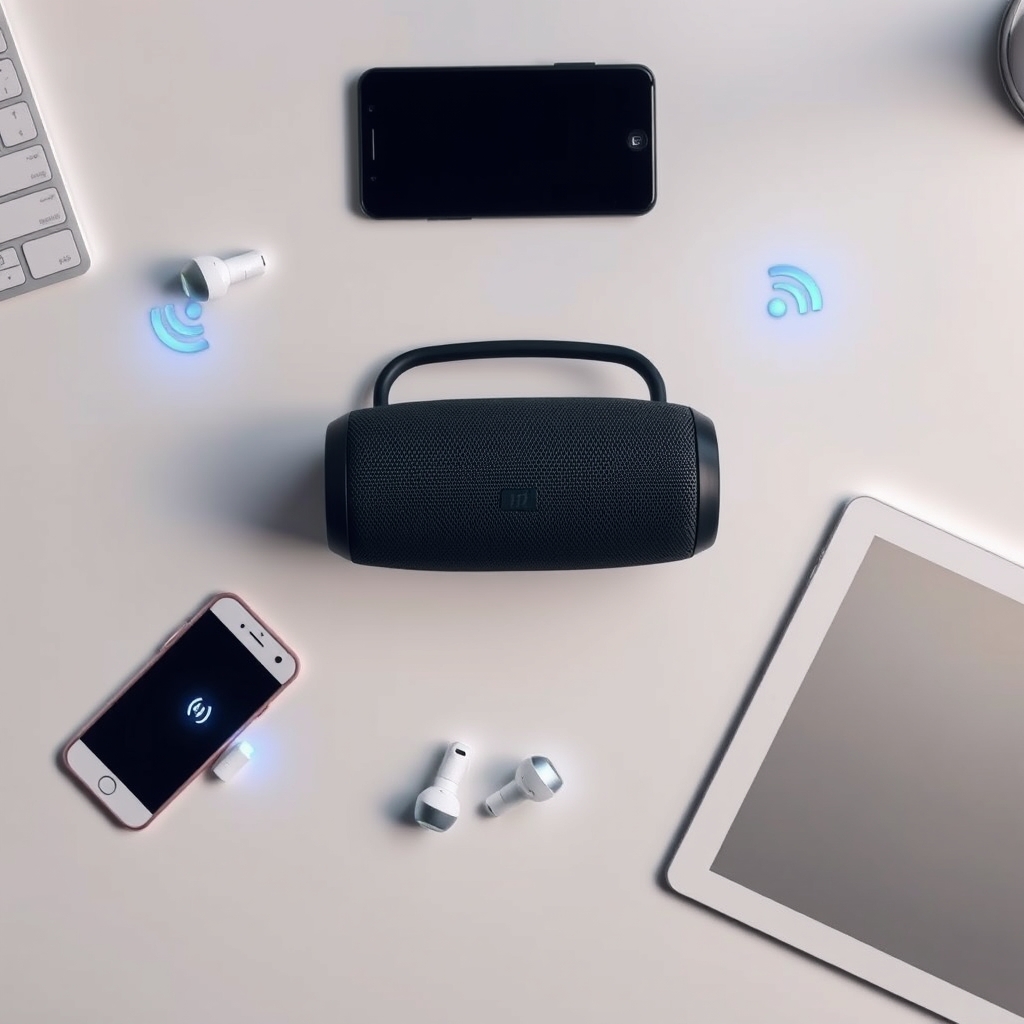
Connecting a portable speaker is straightforward: enable Bluetooth on your device, press the speaker’s pairing button, and select it from your phone’s Bluetooth menu. Most speakers pair in under 30 seconds. WiFi setup takes 2–3 minutes using the speaker’s app, and multiroom configurations require all speakers on the same network and compatible with the same audio ecosystem (Bluetooth LE, AirPlay, Chromecast, or proprietary apps).
This guide walks you through each method, shows you the step most people skip, and explains when to use WiFi instead of Bluetooth.
What You’ll Need
- A portable speaker with Bluetooth, WiFi, or both
- A smartphone, tablet, or computer (for initial setup)
- The speaker’s power cable or fully charged battery
- For WiFi: your home network name (SSID) and password
- For multiroom: the speaker manufacturer’s mobile app (usually free)
- Optional: a Bluetooth-enabled device already paired to your phone (to test after setup)
How to Connect a Portable Speaker via Bluetooth
Bluetooth is the fastest and most reliable connection method for single speakers. It requires no WiFi, works offline, and typically drains less battery than streaming over WiFi.
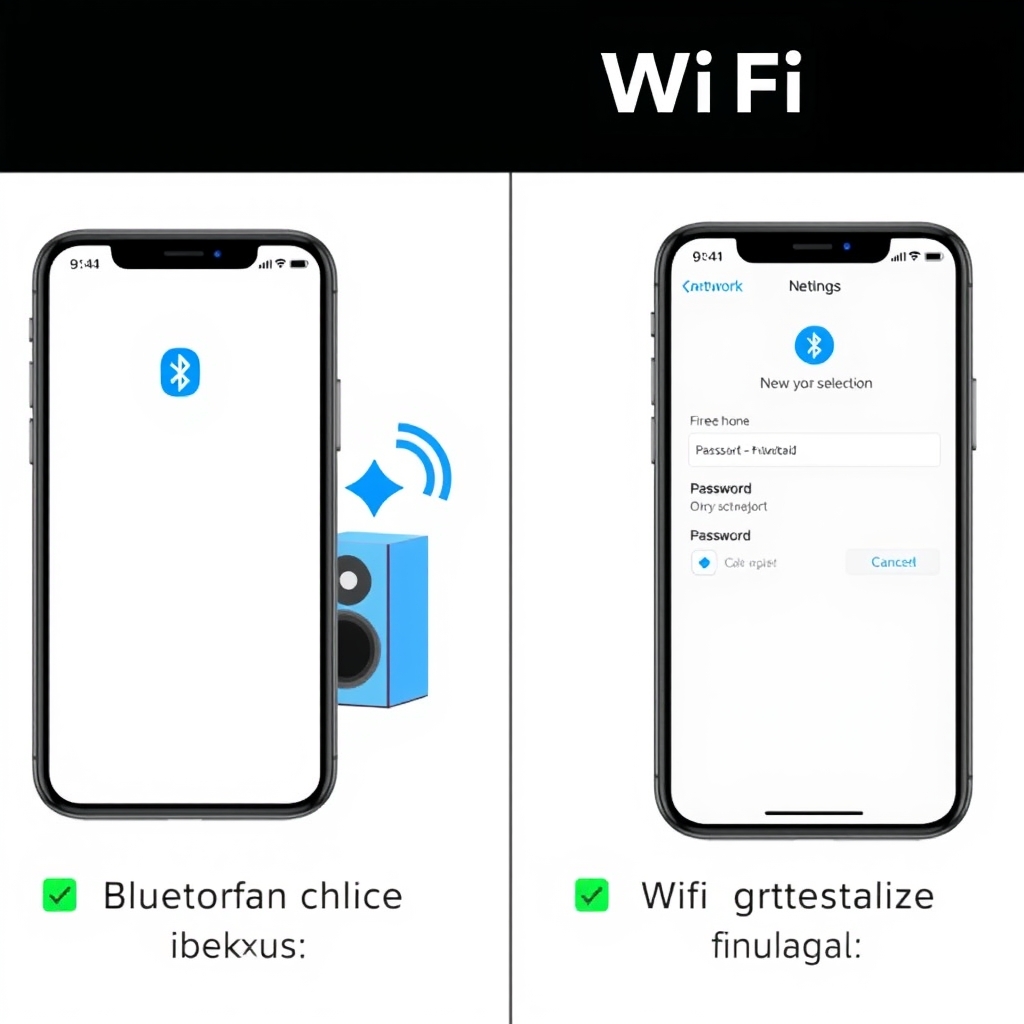
Step 1: Power On the Speaker
Press and hold the power button for 2–3 seconds until you see a light, hear a chime, or see “pairing mode” displayed. Many speakers automatically enter pairing mode the first time they turn on; after that, you may need to press a dedicated Bluetooth or pairing button (often labeled with a Bluetooth symbol ⟳).
Step 2: Open Bluetooth Settings on Your Device
On iPhone: Settings > Bluetooth. On Android: Settings > Connected devices > Bluetooth or Bluetooth & device connection. On a Mac or Windows PC: System Settings > Bluetooth or Devices > Add Bluetooth or other devices.
Make sure Bluetooth is toggled on. This is the step most people skip in a rush if Bluetooth is off, your device won’t see the speaker at all.
Step 3: Look for the Speaker in the Available Devices List
Your speaker should appear in the available devices list within 10–15 seconds. The name will match the label on the speaker or the label you gave it during initial setup (e.g., “JBL Flip 6”, “Sony WH-CH720N”, “UE Boom 3”).
If you don’t see it after 20 seconds: put the speaker closer to your phone (within 6 feet), restart the speaker’s pairing mode, and refresh your device’s Bluetooth list.
Step 4: Tap or Select the Speaker Name
Click the speaker name in the list. Your device will prompt “Pair” or ask you to confirm. Tap “Pair” or “Connect.”
Some speakers will ask for a PIN (usually 0000 or 1234). If prompted, enter it and tap OK.
Step 5: Confirm the Connection
Once paired, you’ll see a “Connected” label under the speaker’s name, and the speaker will emit a tone or voice prompt (e.g., “connected to iPhone”). At this point, any audio from your device music, videos, podcasts will play through the speaker automatically.
To test: open Spotify, YouTube, or your default music app and play a 10-second clip. You should hear sound from the speaker immediately.
How to Connect a Portable Speaker via WiFi
WiFi connections are best for multiroom setups, higher audio quality, and situations where you need to control the speaker from across the house. WiFi uses more battery than Bluetooth but offers better range typically up to 100 feet indoors in most home environments, though walls and interference vary this significantly.
Step 1: Download the Speaker’s Companion App
Nearly all WiFi-capable speakers require their maker’s app to set up WiFi and access advanced controls. Search the App Store or Google Play for your speaker brand (e.g., “Sonos App”, “Amazon Music”, “JBL Authentics”) and install the free version.
Open the app once installed.
Step 2: Create or Log Into Your Account
Most apps require you to sign in with an email and password or a social login (Apple ID, Google). Create an account if you don’t have one. This account syncs your speakers, playlists, and preferences across devices.
Step 3: Plug In and Power On the Speaker
Make sure the speaker is plugged in and powered on. Many speakers need to be plugged into power for WiFi setup; battery mode may not provide enough power for the pairing handshake.
Step 4: Select “Add Device” or “Setup Speaker” in the App
The exact button name varies by brand look for “Add Device,” “Pair New Speaker,” “Setup,” or a “+” icon. Tap it.
The app will scan for nearby unpaired speakers on your WiFi network.
Step 5: Select Your Speaker from the List
Your speaker should appear as an unconnected device (usually listed by model name or a generic label like “New Device”). Tap its name.
Step 6: Enter Your WiFi Network Details
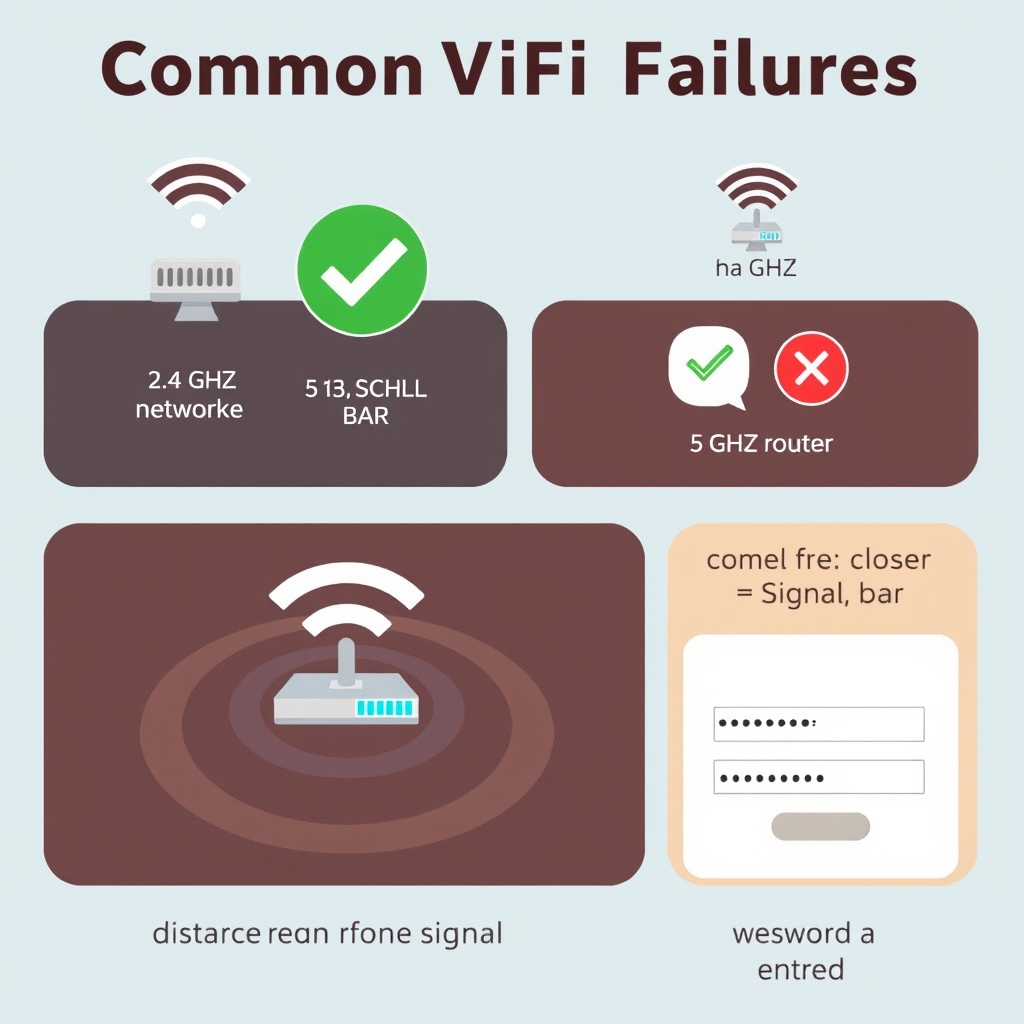
The app will ask you to select your home WiFi network (SSID) and enter the password. Select your 2.4 GHz network, not 5 GHz most portable speakers only support 2.4 GHz WiFi, and connecting to 5 GHz will cause immediate disconnection.
Type your WiFi password exactly as it appears (case-sensitive). Tap “Connect” or “Next.”
Step 7: Wait for Confirmation
The app will attempt to connect the speaker to your network. This usually takes 30–60 seconds. You’ll see a loading screen or progress bar.
Once connected, the app will confirm “Speaker connected” or move to a naming screen where you can label the speaker (e.g., “Living Room,” “Kitchen”). Name it something you’ll recognize.
Step 8: Test the Connection
Open a music streaming service (Spotify, Apple Music, Amazon Music) within the app or from your phone’s native app. Play a song. The speaker should begin playing within 2–3 seconds.
If audio doesn’t play: check that WiFi is still connected by looking at the app dashboard. If it shows “Offline” or “Disconnected,” restart the speaker and re-enter your WiFi password.
How to Set Up Multiroom Audio
Multiroom audio lets you play the same song (or different songs) on multiple speakers in your home simultaneously. This requires all speakers to use the same connectivity method and be on the same WiFi network.
Step 1: Ensure All Speakers Are on the Same WiFi Network
Before setting up multiroom, add each speaker to your home WiFi using the app method above. Open the app’s main dashboard and verify that all speakers show as “Connected” (not “Offline”).
If any speaker shows offline: check that it’s powered on, within WiFi range (20–30 feet from your router is a reliable starting point, though walls and obstructions reduce this), and hasn’t dropped off the network.
Step 2: Look for a “Group,” “Room,” “Multiroom,” or “Party Mode” Button
Different brands use different names. Sonos calls it “Groups,” JBL uses “Multiroom,” Amazon (Echo) uses “Combine Devices,” and Bose uses “Party Mode.” Open the app and find this option usually in the main menu or audio settings.
Step 3: Select Which Speakers to Group
Check the box next to each speaker you want to include in the group. For example, to play music in your living room and kitchen at the same time, select both the living room and kitchen speaker.
Step 4: Name the Group (Optional)
You can name the group “Downstairs,” “Whole House,” or any label that makes sense. This makes it easy to recall which speakers play together.
Step 5: Start Playing Audio
Open your music app (Spotify, Apple Music, etc.) and tap “Play” on a song. Look for an output selector or speaker icon tap it and select your newly created group. Audio should begin playing on all grouped speakers simultaneously, usually within 1–2 seconds.
To stop grouping, return to the Multiroom menu and uncheck the speakers you want to separate.
The Most Common Mistake Everyone Makes
Forgetting to turn Bluetooth on before trying to connect. Most people open Bluetooth Settings, see “No devices available,” and assume the speaker is broken. In reality, Bluetooth is disabled. Check the toggle at the top of the Bluetooth menu and ensure it’s blue/on.
The second-most common mistake: trying to connect a speaker to a 5 GHz WiFi band. Most portable speakers only support 2.4 GHz. If your router broadcasts both, your phone will likely auto-connect to the faster 5 GHz band, but your speaker cannot see it. Manually select your 2.4 GHz network name when setting up WiFi.
Important Caveats and Limitations
Range and Interference
Bluetooth typically works reliably within roughly 30 feet of your device in open space real-world range shrinks with walls and interference. WiFi extends further in open space but is also blocked by thick walls, metal, and large appliances. If a speaker disconnects when you move to another room, you’re likely at the edge of range. Move closer or relocate your WiFi router.
Multiroom Requires Compatible Speakers
Not all speakers support multiroom with each other. A Sonos Move cannot group with a JBL Link. Before buying multiple speakers for multiroom, confirm they’re from the same brand or use a universal standard like AirPlay 2, Chromecast, or DLNA. Check the product specs or manufacturer website.
Battery Impact
In practice, WiFi drains battery noticeably faster than Bluetooth because it keeps the radio active constantly expect meaningfully shorter runtimes when streaming over WiFi versus Bluetooth. If you plan to use a portable speaker unplugged for extended periods (e.g., hiking, camping), stick with Bluetooth. For home use where the speaker sits on a shelf, WiFi is fine.
Reconnection Delays
If you turn off a grouped speaker and turn it back on, it usually takes 10–20 seconds to rejoin the multiroom group. Audio will pause briefly. This is normal and not a malfunction.
FAQ
Why won’t my speaker show up in Bluetooth Settings?
Bluetooth is likely disabled, or the speaker is not in pairing mode. First, toggle Bluetooth on in your device settings. Second, restart the speaker or press its pairing button. Wait 15 seconds, then check the available devices list again. If the speaker still doesn’t appear, move it within 6 feet of your phone and try once more.
Can I connect a Bluetooth speaker to multiple devices at the same time?
Most speakers can pair with multiple devices but can only actively play from one at a time. Once you play audio on a second device, the speaker disconnects from the first. Some premium speakers support simultaneous connections; check your product manual. For practical purposes, assume one device at a time.
Do I need WiFi to use my portable speaker?
No. Bluetooth speakers work completely offline and require no WiFi. WiFi is optional and only needed if you want multiroom capability, remote control from a distance, or to use specific music services (like Sonos Radio) that require internet. Pure Bluetooth speakers are fully functional without any network.
What should I do if the WiFi setup keeps failing?
Most WiFi failures occur because the speaker and phone are too far from the router (move both closer), the WiFi band is 5 GHz instead of 2.4 GHz (check and switch), or the password is wrong (re-enter it carefully, watch for caps lock). If it still fails, power off the speaker, forget the WiFi network from the app, and restart both the speaker and your phone. Then try setup again from scratch.
Is it safe to leave a portable speaker plugged in all the time?
Yes, it’s safe. Modern speakers have smart charging circuits that stop charging once the battery is full, preventing overcharge damage. However, leaving a speaker plugged in continuously may reduce long-term battery lifespan slightly over time. If you use your speaker regularly, leaving it plugged in when not in use is fine; if you store it for months, unplug it to preserve the battery.
Getting the Most Out of Your Connected Speaker
Update Firmware Regularly
Most speaker apps prompt you to update firmware when a new version is available. Accept these updates they improve stability, fix Bluetooth and WiFi bugs, and add features. Check the app settings menu every few months for manual update options.
Test Multiroom Sync
If you use multiroom, play a song you know well and listen for lag between speakers. Most grouped speakers sync within 100 milliseconds (imperceptible to most listeners). If you hear a noticeable delay (0.5 seconds or more), try ungrouping and regrouping, or move speakers closer to the WiFi router.
Keep WiFi Credentials Saved
After initial WiFi setup, the speaker stores your network credentials. If you change your WiFi password, you’ll need to re-enter it in the app. Don’t assume it will auto-update it won’t. Go to the app’s settings menu and re-authenticate with your new password.
Use Bluetooth for Battery Life
If you’re using a portable speaker unplugged and want the longest battery life, stick with Bluetooth instead of WiFi. Based on typical use patterns, Bluetooth can add several hours of playback time on a single charge compared to WiFi streaming.
Clear Old Paired Devices
Over time, a speaker may retain pairings with old devices you no longer own. If you’re troubleshooting connection issues or selling the speaker, reset the pairing list. Look for “Unpair All Devices” or “Factory Reset” in the app settings or speaker manual.
Summary
Portable speakers connect fastest via Bluetooth (under 30 seconds) and offer the most flexibility via WiFi (2–3 minutes). Bluetooth is ideal for single-speaker use and battery life; WiFi enables multiroom audio and remote control. The most common mistakes leaving Bluetooth off and choosing a 5 GHz network during WiFi setup are easy to avoid once you know to check for them. After pairing, keep firmware updated and test multiroom sync if you’re grouping speakers. Your speaker should stay connected reliably as long as it’s within range and on the same network.