

Setting up a smart home device correctly takes 15–30 minutes for most products, and most connection failures stem from WiFi placement or password errors not hardware defects. This guide walks you through initial setup, network optimization, troubleshooting decisions, and maintenance routines so your devices stay online and responsive.
What You’ll Need
- The device itself and its original power adapter
- Your WiFi network name (SSID) and password
- A smartphone or tablet with the manufacturer’s app already installed
- Your WiFi router’s location and signal strength info (helpful, not required)
- A notebook or password manager to track device names and pairing codes
Step-by-Step: Initial Setup for Any Smart Home Device
Step 1: Power on the device in its final location
Plug in the device where you plan to use it permanently not at the router, not on a shelf near the router. Smart bulbs belong in the fixture; smart speakers belong in the room you want them in. This prevents you from testing WiFi strength in one spot and finding it drops once you move the device.
Wait for the LED indicator to cycle through its startup sequence (usually 30–60 seconds of blinking, pulsing, or color shifts). Don’t proceed to the app until you see a stable light pattern or hear a startup chime.
Step 2: Open the manufacturer’s app and select “Add Device” or “Pair New Device”
Most smart home systems use their own proprietary app Amazon Alexa for Echo devices, Apple Home for HomeKit products, Google Home for Nest, and brand-specific apps for everything else. Download the correct app before powering on the device; it saves a step and prevents confusion.
Select your exact device model from the app’s menu. The app will either automatically detect nearby devices or ask you to scan a QR code on the product packaging. Some devices require you to hold a pairing button for 3–5 seconds first check the quickstart card.
Step 3: Select your WiFi network and enter your password
The app will display all available networks in range. Choose your home WiFi (the one you actually use, not your guest network unless the device is designed for guest networks). Type your password carefully spaces, capitalization, and special characters all matter. Copy-paste from your password manager if you’re unsure.
Avoid entering a password from memory if your network uses an unusual character set. One wrong character will fail silently and leave you troubleshooting for 15 minutes.
Step 4: Give the device a descriptive name
Instead of “Alexa 3” or “Device 1”, use a location-based name: “Living Room Speaker”, “Bedroom Bulb”, “Kitchen Switch”. This makes voice commands intuitive and prevents confusion when you’re troubleshooting multiple devices later.
Some systems allow you to assign the device to a room or zone. Do this now if available it enables multi-device actions (“Alexa, turn off bedroom” affects all bedroom lights) and simplifies future automation.
Step 5: Confirm successful pairing and test a basic function
Once the app shows “Connected” or “Online”, test the device immediately: turn a light on and off, play a sound on a speaker, or trigger a basic action. This confirms the connection is stable before you move on to automation or advanced features.
If the device shows “Connected” but doesn’t respond to commands, disconnect and reconnect unplug it for 10 seconds, power it back on, and re-enter the WiFi password in the app.
Why Smart Home Devices Go Offline: The WiFi Problem First
Most smart home frustration is a WiFi problem dressed up as a device problem. Before assuming your device is broken, check whether your home network itself is the culprit.
Smart home devices use the 2.4 GHz WiFi frequency (not the faster 5 GHz band your phone prefers). The 2.4 GHz channel is shared with cordless phones, baby monitors, and microwave ovens all of which can drown out your devices. Additionally, smart devices have weaker radios than phones and laptops, so they drop offline sooner when WiFi signal weakens.
A single device offline is usually a connection problem. Multiple devices offline at once usually means your router needs a restart.
WiFi Optimization for Smart Homes
Position your router centrally and elevated
WiFi signals travel better in straight lines and weaken through walls, metal, and water. Place your router in a central, elevated location not in a corner, not hidden in a closet, not next to a microwave. If you have multiple floors, placing the router on the second floor covers both floors more evenly than placing it on the first floor.
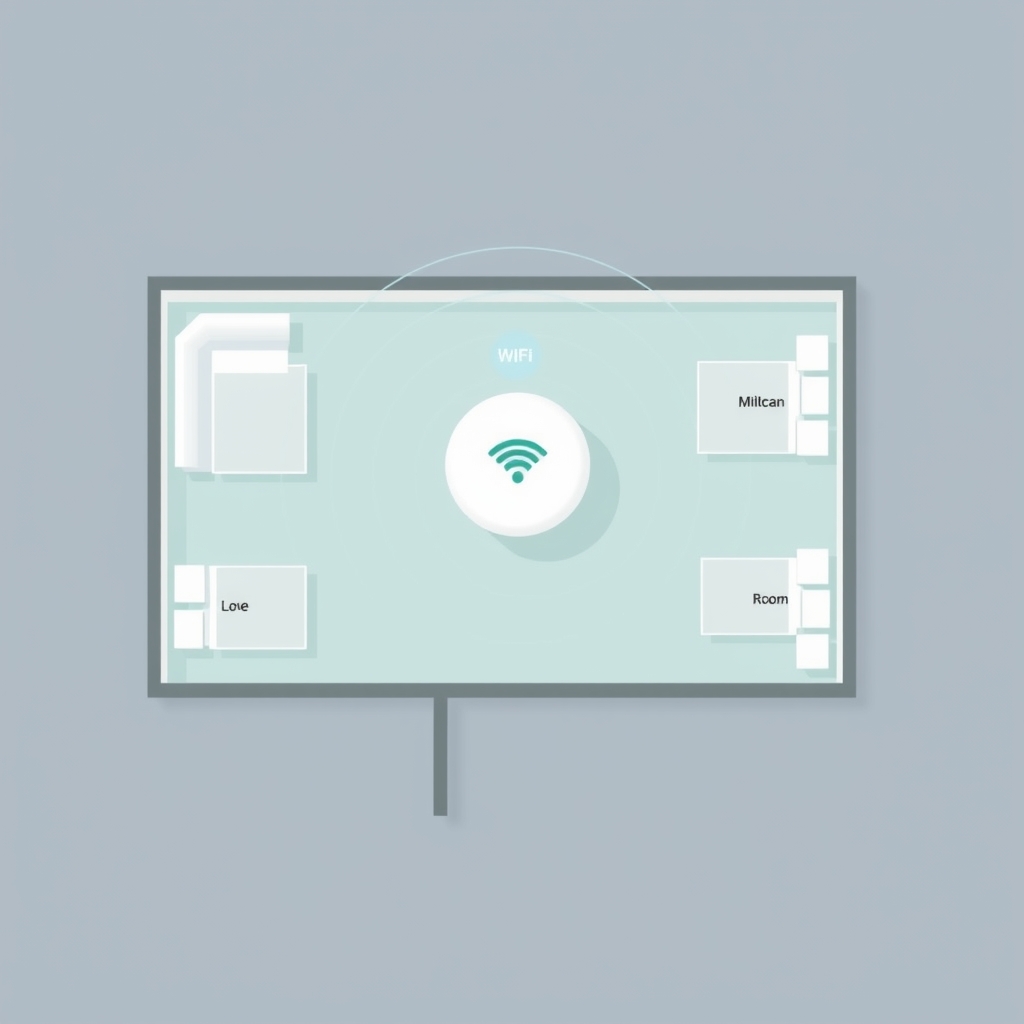
If your router must live in a closet or cabinet for aesthetic reasons, move it to the front edge of that closet or cut a small opening in the door to improve signal path.
Separate the 2.4 GHz and 5 GHz bands
Many modern routers broadcast both 2.4 GHz (longer range, slower, required for smart home devices) and 5 GHz (shorter range, faster, preferred by phones and laptops) from a single network name. If your router supports it, split these into separate networks with different names. Your phone connects to “YourNetwork-5G” (fast), and your smart devices connect to “YourNetwork-2.4G” (reliable).
This prevents your phone from automatically jumping to 5 GHz, which might be out of range in parts of your home, and ensures smart devices are not competing with bandwidth-hungry video streaming.
Keep your router’s firmware updated
Manufacturers release router firmware updates to fix WiFi stability issues, improve range, and patch security vulnerabilities. Check your router’s admin panel (usually accessible at 192.168.1.1 or 192.168.0.1 in your browser) every 3–6 months and apply updates when available. Most routers can auto-update if you enable that option.
Reduce channel interference
WiFi routers on your 2.4 GHz band can overlap with neighbors’ networks and create interference. Apps like WiFi Analyzer (Android) or iStumbler (Mac) show which channels are least crowded. If your router allows manual channel selection, choose channel 1, 6, or 11 these don’t overlap with each other. Automatic channel selection usually works fine, but manual selection can help if you live in a dense apartment building.
Troubleshooting Decision Tree: Device Offline or Won’t Connect
Is the device’s power light on?
No → Device has no power. Check that the power adapter is plugged into a working outlet. Test the outlet with another device (a lamp, for example). If the outlet is dead, try a different outlet. If the adapter feels hot or smells burnt, the power supply may be defective stop using it and contact the manufacturer.
Yes → Proceed to next question.
Can you see your WiFi network name (SSID) in the device’s app?
No → WiFi network is not in range. Move the device closer to the router (within 15–20 feet) and try again. If the network still doesn’t appear, restart the router: unplug it for 30 seconds, plug it back in, and wait 2–3 minutes for it to fully boot.
Yes → Proceed to next question.
Did you enter the WiFi password correctly?
Not sure → Delete the network from the device (forget it in the app), then reconnect and re-enter the password carefully. Copy-paste from your password manager if you have one. Common mistakes: mixing up 0 (zero) and O (letter O), or 1 (one) and l (lowercase L).
Confirmed correct → Proceed to next question.
Is the device showing “Connected” in the app but not responding to commands?
Yes → Your device is online but traffic isn’t reaching it. This usually means your router’s firewall or local network settings are blocking the device. Try unplugging the device for 10 seconds and plugging it back in. If this doesn’t work, log into your router’s admin panel and check if there’s a “MAC filtering” or “device blocking” list that includes your smart device. If found, remove the device from any blocklists.
Alternatively, restart the app on your phone and try the command again. Sometimes the app connection needs to refresh.
No, the app says “Offline” → Proceed to next question.
Did this device just lose connection, or has it never been online?
Just lost connection → Check whether other devices (your phone, laptop) still have internet. If your entire WiFi is down, restart the router: unplug it for 30 seconds, plug it back in, and wait 3 minutes. Once the internet returns, give the smart device another 2–3 minutes to reconnect automatically. If it doesn’t, unplug and replug the device.
Never been online → Go back to the app, forget the network (remove it from saved networks), and reconnect. Re-enter your password exactly as it appears in your router settings. If you’re still stuck after two attempts, factory reset the device: most devices have a reset button (hold for 10 seconds) or a reset procedure (unplug for 30 seconds while holding the pairing button). Check the manual for your model.
Firmware Updates: Why They Matter and How to Install Them
Firmware is the software that runs on the device itself separate from the app on your phone. Manufacturers release firmware updates to add features, fix bugs, improve WiFi stability, and patch security holes. Devices that don’t receive updates become less reliable over time.
How to check for and install updates
Open the device’s app, navigate to Settings (usually a gear icon), and look for “Device Info”, “About”, or “Software Update”. If an update is available, you’ll see a blue notification or a prompt to update. Select “Update Now” and let the device install the update without interrupting it don’t unplug or restart the device during an update, as this can corrupt the firmware.
Most updates complete in 5–10 minutes. The device may restart one or more times; this is normal. Once the update finishes, the device should reconnect to WiFi automatically.
Why some devices stay offline after an update
After a major firmware update, a device sometimes loses its WiFi connection. If this happens, unplug the device for 10 seconds, plug it back in, and wait 2 minutes for it to reconnect. If it still shows offline, “forget” the network in the app and reconnect using your WiFi password again.
In rare cases, an update may reset the device’s WiFi settings entirely. If the device refuses to reconnect after two attempts, perform a factory reset: hold the reset button for 10 seconds (consult your manual for the reset procedure), then set it up again from scratch.
Enable automatic updates when possible
Most smart home devices allow automatic firmware updates. In the app’s settings, look for “Auto Update”, “Background Update”, or “Update Schedule”, and enable it. Automatic updates install overnight or during off-peak hours, so you won’t experience unexpected downtime during the day.
Common Mistakes and The Step Nobody Explains
The mistake: trusting the box or manual for password entry
Manuals often show password entry happening right next to the router. In reality, place your device in its final location before connecting to WiFi. Smart devices have much weaker radios than your phone what has a strong signal 3 feet from the router may have a weak or unstable signal 30 feet away in the living room. Testing WiFi strength at the router gives you a false sense of security.
The step nobody explains: device naming and organization
Once your device is online, immediately rename it and assign it to a room. Generic names like “Alexa 2” or “Living Room Speaker” work, but use consistent naming across all your devices so voice commands and app controls feel natural. For example: “Bedroom Light”, “Kitchen Speaker”, “Front Door Camera”. Avoid vague names like “Device 1” six months from now, you won’t remember which one that is.
Maintenance: Keeping Your Smart Home Devices Running Smoothly
Monthly: Restart your WiFi router
Unplug the router, wait 30 seconds, and plug it back in. This clears temporary memory, reconnects all devices with fresh credentials, and fixes minor WiFi glitches before they become serious. Set a calendar reminder for the first of each month.
Quarterly: Check for firmware updates on all devices
Open each device’s app, navigate to Settings, and check for updates. Install any available updates immediately. This ensures your devices have the latest stability improvements and security patches. Mark your calendar for the first of each quarter (January, April, July, October).
Every 6 months: Check WiFi signal strength in your device locations
Use a WiFi analyzer app (like WiFi Analyzer on Android or iStatistica on iOS) to measure signal strength where your devices live. A signal between -50 dBm and -70 dBm is good; below -70 dBm is weak and may cause disconnections. If a device location shows weak signal, move your router, add a WiFi extender, or consider relocating the device.
As needed: Reset forgotten device passwords or reconnect devices
If you change your WiFi password, all your smart devices will lose connection. Go into each device’s app, “forget” the old network, and reconnect using the new password. This prevents you from having to factory reset every device. Some systems allow you to change WiFi settings across all devices at once check your app’s main settings menu for a “WiFi” or “Network” section.
Frequently Asked Questions
Why does my smart device keep disconnecting even though my phone stays connected?
Smart devices have weaker radios than phones and laptops, so they lose connection more easily. The most common causes are (1) the device is too far from the router, (2) the 2.4 GHz band is overcrowded (try moving to a less-used WiFi channel), or (3) the device’s firmware is outdated (check for updates in the app). Start by restarting your router and checking for firmware updates. If the device is in a weak signal area, move your router or add a WiFi extender.
Should I use a guest network for my smart devices?
No guest networks are intentionally isolated from the rest of your home network, which prevents your devices from communicating with each other and with automation hubs. Connect smart devices to your main WiFi network. If security is a concern, change your WiFi password to something strong (16+ characters with numbers and special characters) rather than isolating devices on a separate network.
What’s the difference between resetting a device and factory resetting it?
A “reset” (unplug for 10 seconds) clears temporary memory and forces the device to reconnect to WiFi, but keeps its pairing and settings intact. A “factory reset” (hold the reset button for 10 seconds or follow the manual’s procedure) erases all settings and pairing data, returning the device to its original out-of-box state. Use a regular reset first; only factory reset if the device refuses to reconnect after multiple attempts.
Can I use a 5 GHz WiFi band for my smart devices?
Most smart devices require 2.4 GHz. A few premium devices support both 2.4 GHz and 5 GHz, but they default to 2.4 GHz for range. Check your device’s specs before attempting to connect to 5 GHz. If you try to connect a 2.4 GHz–only device to a 5 GHz network, the connection will fail silently, and the app will show “Network not found”.
How do I know if my device has a security vulnerability?
Manufacturers announce security issues through official channels and fix them in firmware updates. The best protection is to install firmware updates the moment they become available. Subscribe to the manufacturer’s email list or check the app monthly for updates. If you’re concerned about a specific product, search for its name + “security vulnerability” on the manufacturer’s website.