
Multiroom smart speakers aren’t just multiple speakers in different rooms they’re a coordinated system, and that matters. Pick the wrong ecosystem or mismanage your grouping strategy, and you’ll hear audio lag, get stuck with clunky controls, or end up with one speaker playing while another sits silent. The difference between a working whole-home setup and an annoying one often comes down to latency management and understanding which platform actually delivers synchronized playback.
This guide covers ecosystem choice, room grouping mechanics, latency troubleshooting, and the real trade-offs between Amazon Alexa, Google Home, and Apple’s ecosystem for coordinated audio across rooms.
What You’ll Need: Prerequisites and Ecosystem Choice
Before you start grouping speakers, lock in your ecosystem. You cannot mix Alexa, Google Home, and Apple speakers in the same group they don’t communicate across brands. Your whole-home audio system runs on one platform.
Amazon Alexa (Echo speakers) handles multiroom grouping through the Alexa app and works reliably across budget and premium hardware. You’ll need at least two Echo devices or Echo-compatible speakers (third-party models like Sonos Arc, Denon, or Yamaha devices with Alexa built-in also work). Alexa groups are created in the app and respond to voice commands like “play music everywhere.”
Google Home (Nest Audio, Nest Mini, Google Home) uses Google’s Home app for grouping and casting. The interface is different from Alexa you’re casting to speaker groups rather than creating “rooms” in the traditional sense. Google Home’s multiroom works well, but the terminology can feel less intuitive if you’re coming from Alexa. Supported speakers include Nest-branded devices and third-party Cast-compatible hardware.
Apple’s HomePod and HomePod mini support AirPlay 2 multiroom grouping, which requires HomeKit setup and an Apple ID. This is more restricted fewer third-party speakers support AirPlay 2 fully, and the control surface is tighter. If you’re deep in Apple’s ecosystem (iPhone, iPad, Mac), this works seamlessly. If you’re cross-platform, it creates friction.
What you’ll also need:
- A stable Wi-Fi network (crucial for sync)
- Router capable of handling multiple simultaneous connections (most modern routers do)
- The manufacturer’s mobile app (Alexa, Google Home, or Apple Home)
- Optional: a wired Ethernet connection to your primary speaker or a mesh Wi-Fi node near it (reduces latency jitter)
Skip multiroom grouping entirely if you’re planning to mix ecosystems you’ll have independent speakers instead, which defeats the purpose. If your Wi-Fi is unstable or your router doesn’t prioritize local traffic, multiroom playback will glitch repeatedly.
Step-by-Step: Building Your Multiroom Setup
Step 1: Position Your Speakers and Map Your Rooms
Decide which rooms you want grouped together. A typical whole-home setup might include living room, kitchen, and bedroom or a more granular split with separate groups (e.g., “upstairs” and “downstairs” as separate groups, not one giant house-wide group).
Physically place your speakers. Mount them on shelves or in central locations where they can hear voice commands and reach your Wi-Fi access point without excessive distance. Walls between speakers and your router create Wi-Fi attenuation; if a room is far from your router, consider a mesh node nearby or run a hardline to a secondary router set to bridge mode.
Test Wi-Fi signal strength in each room (most phones show this in settings). If a room drops below -70 dBm, expect latency and dropout issues. This is especially important for multiroom because weak signals hit group playback first.
Step 2: Set Up Each Speaker Individually and Connect to Wi-Fi
Don’t try to group speakers until each one is set up and responding independently. Use the manufacturer’s app (Alexa, Google Home, Apple Home) to:
- Power on the speaker
- Run the initial setup wizard
- Connect to your Wi-Fi network
- Assign a location or room name in the app (e.g., “Living Room Echo”, “Kitchen Nest Audio”)
- Test playback solo play music or a test sound to confirm it’s working
Do this for every speaker you’re adding to the system. Skipping this step and trying to group speakers during initial setup often causes pairing failures and confusing error states.
For Alexa: Each Echo needs to be added to your Amazon account and appear in the Alexa app’s device list.
For Google Home: Each speaker appears in the Google Home app under “Devices” once connected and signed in.
For Apple HomePod: Each HomePod needs to be added to your HomeKit home and associated with a user account.
Step 3: Create Speaker Groups (or Zones)
Amazon Alexa:
- Open the Alexa app and tap the Devices tab (bottom right)
- Tap the + button and select Create Group
- Name your group (e.g., “Whole House” or “Downstairs”)
- Select which speakers to include by tapping the checkbox next to each device
- Tap Save
Your group now appears under “Devices” and in the Alexa app’s Music section. You can play music to the group via voice (“Alexa, play jazz in Whole House”) or through the app.
Google Home:
- Open the Google Home app and tap the Settings gear (top right)
- Select Audio groups or Create speaker group
- Name the group (e.g., “Whole Home”)
- Select speakers to add
- Save
Google calls this “speaker groups,” and they work via casting music flows to the group as a unified target, not as a traditional zone like Alexa uses.
Apple HomePod:
- Open the Apple Home app
- Add each HomePod to your Home
- Go to Home Settings and select Rooms
- Assign each HomePod to its room
- For stereo pairs or multiroom playback, select a speaker, go to Details, and look for Audio Grouping or Handoff options
Apple’s approach is more granular you’re grouping by room assignment, and AirPlay 2 devices automatically become available as a multiroom target when you’re casting.
Step 4: Test Playback and Check Sync
Start playback to your group through the app or voice command. Use a track you know well something with a clear beat helps you hear if audio is drifting between rooms.
Walk around your space while music plays. You should hear relatively synchronized sound across rooms. Small delays (sub-50 milliseconds) are imperceptible and normal. If you hear obvious lag one speaker lagging 200+ ms behind another note which room is delayed and check that speaker’s Wi-Fi signal.
Common observations in practical setups:
- Alexa groups often have tighter sync (in patterns observed across owner forums) because Amazon’s playback architecture uses local network synchronization when possible
- Google Home casting can have slightly higher variance in latency, especially if speakers are on different Wi-Fi bands (2.4 GHz vs. 5 GHz)
- Apple AirPlay 2 generally syncs very tightly (per Apple’s published design), but only if all devices are on the same Wi-Fi network
Step 5: Configure Volume Control and Per-Room Adjustments
Once your group is playing, you can adjust volume globally (all speakers at once) or per-room (kitchen louder, bedroom quieter). All three ecosystems support this:
Alexa: Open the app, find your group, and adjust the master volume slider. Tap individual speakers in the group to adjust them independently.
Google Home: When casting to a speaker group, the volume control adjusts all speakers. Tap a speaker name to adjust it solo.
Apple Home: Use the volume slider in the AirPlay menu on your iPhone/iPad. For per-room control, go to Home app > select a room > AirPlay settings.
Step 6: Optimize for Latency (Advanced Adjustment)
If you’re hearing noticeable sync drift, try these adjustments:
Isolate your speakers on a dedicated Wi-Fi band: If your router supports 5 GHz and 2.4 GHz bands, connect all multiroom speakers to the same band (preferably 5 GHz for speed, though range may be shorter). Devices split across bands can have variable latency.
Reduce Wi-Fi interference: Run a Wi-Fi scanner app and check for overlapping channels from neighboring networks. Most routers default to auto-channel selection, but manual tweaking can help if you’re in a congested area.
Hardline your primary speaker: If possible, run an Ethernet cable to your main speaker (Echo, Nest Hub, or HomePod). This removes that device from Wi-Fi contention and can improve group stability. Secondary speakers can remain wireless.
Disable older Wi-Fi standards (if applicable): In your router settings, disable 802.11b/g if they’re still enabled. Modern smart speakers use 802.11n/ac, and legacy protocols slow down the whole network.
Pro Tips and Common Mistakes
Mistake: Grouping Speakers Across Rooms Before Testing Solo Playback
You can’t troubleshoot a group if you don’t know if individual speakers work. Always confirm each speaker plays music alone before grouping.
Mistake: Mixing Multiple Versions of Devices
Older Echo Dots and newer Echo 4s can group together, but devices with very different hardware or firmware versions sometimes have sync issues. Based on owner reports we’ve reviewed, keeping devices from the same generation in a group reduces latency variance.
Pro Tip: Use Voice Commands for Quick Zone Control
Once your group is named, use voice to switch between playback targets. “Alexa, play [song] everywhere” sends music to the entire group. “Alexa, play [song] in the kitchen” targets just that room (if it’s set as a separate single speaker or its own group). This is faster than opening the app, especially during parties or while cooking.
Pro Tip: Create Multiple Groups for Different Scenarios
Set up separate groups for different use cases. For example:
- “Whole House” (all speakers)
- “Downstairs” (living room + kitchen)
- “Bedrooms” (bedroom + guest room)
- “Party” (speakers likely to be used together for entertaining)
This gives you flexibility sometimes you want music in just the kitchen while working, other times everywhere.
Mistake: Ignoring Speaker Distance and Layout
If rooms are far apart (e.g., a basement speaker and an upstairs bedroom), you’re more likely to see latency drift because they’re on different Wi-Fi paths. In tight layouts (open-plan living room + kitchen), grouping works more smoothly.
Pro Tip: Use a Dedicated 2.4 GHz Network for Multiroom
Countintuitive, but many users report that creating a separate SSID on the 2.4 GHz band for smart speakers only avoiding other devices improves stability. This is especially helpful if your home has a lot of Wi-Fi-using devices (laptops, phones, security cameras) competing for bandwidth.
Ecosystem Comparison: Latency, Grouping Features, and Real Trade-Offs
| Factor | Amazon Alexa | Google Home | Apple HomePod |
|---|---|---|---|
| Multiroom Concept | Named groups; voice-friendly | Speaker groups; casting-focused | Room-based via AirPlay 2 |
| Typical Sync Latency | Tight (~50–150 ms variance based on owner observations) | Moderate (~100–250 ms based on community reports) | Tight (sub-100 ms per AirPlay 2 specifications) |
| Ecosystem Lock-In | Moderate; supports some third-party speakers through Alexa | Moderate; works with Cast-compatible devices | High; AirPlay 2 is limited to Apple devices and certified partners |
| Voice Command Ease | Very easy — e.g., “play X everywhere” | Moderate; some commands work best through the app or casting | Easy; Siri and HomeKit scenes enable voice control |
| Per-Room Volume Control | Yes — in-app and voice | Yes — in-app | Yes — in-app and Siri |
| Setup Complexity | Low | Low | Medium; HomeKit can add setup steps |
| Budget-Friendly Multiroom | Best — multiple Echo Dots provide a low-cost entry point | Good — Nest Mini is comparable | Most expensive — HomePod mini generally costs more |
| Third-Party Speaker Support | Good — includes some Sonos, Denon, and Yamaha products | Good — compatible Cast devices | Limited — certified AirPlay 2 partners only |
Which ecosystem wins for multiroom?
If latency is your top priority and you want the absolute tightest sync, Apple HomePod + AirPlay 2 edges out the others on spec but only if you’re willing to commit to the Apple ecosystem and pay more.
If you want the easiest setup, best voice control, and most flexible third-party support, Amazon Alexa is the practical pick. Grouping is intuitive, Echo hardware is affordable, and you can add compatible third-party speakers later.
If you’re already in Google’s ecosystem and want something that just works, Google Home speaker groups are solid they’re not quite as lag-free in practice, but they’re smooth for most use cases and the app interface is clean.
Troubleshooting: Why Your Multiroom Audio Isn’t Syncing
Problem: One Speaker Lags Behind Others (Audio Drift)
Cause: That speaker has a weak Wi-Fi signal or is too far from the router.
Fix: Check the Wi-Fi signal strength on that device (in the app settings for each speaker). If it’s below -70 dBm, move the speaker closer to the router, add a Wi-Fi extender or mesh node nearby, or hardline it if possible. Restart the speaker and test again.
Alternatively, check if that speaker is on a different Wi-Fi band (2.4 GHz vs. 5 GHz). Move it to the same band as the others through your router settings or the speaker’s network settings.
Problem: Music Stops on One Speaker During Group Playback
Cause: Wi-Fi dropout, device disconnection, or app crash.
Fix:
- Restart the affected speaker (unplug for 10 seconds, plug back in)
- Restart your router
- Check your internet connection multiroom relies on local network communication, but if your primary router connection fails, the group can fall apart
- Delete and recreate the group in the app
If this happens repeatedly with one speaker, that device may have a hardware issue or a weak antenna. Based on owner reports, older Echo Dot 2nd-gen devices are prone to this; newer models are more stable.
Problem: High Latency (200+ ms Delay Between Rooms)
Cause: Wi-Fi congestion, interference, or too many devices on your network.
Fix:
- Disconnect or move non-essential Wi-Fi devices (guest networks, if active, add latency)
- Change your router’s Wi-Fi channel (use a Wi-Fi analyzer app to find less congested channels)
- Hardline your primary speaker if possible
- If you’re using mesh Wi-Fi, ensure all speakers connect to the same node or the main unit, not scattered across different nodes (this increases latency)
Problem: Speakers Won’t Group at All (Error Message or No Option to Group)
Cause: Speakers are on different Wi-Fi networks, firmware is outdated, or app is out of sync.
Fix:
- Confirm all speakers are on the same Wi-Fi network (same SSID and password)
- Check that all devices are on the latest firmware (usually updates automatically, but you can force a check in the app)
- Sign out of the app completely and sign back in
- Restart your phone and each speaker
- If still failing, delete one speaker from the app, set it up fresh, and try grouping again
Problem: Voice Commands Work, But Group Playback is Glitchy
Cause: Local network communication is degraded; devices are falling back to cloud routing.
Fix: Most smart speakers cache grouping data locally, but if this fails, they route commands through the cloud, which adds latency and reduces reliability.
- Restart your router
- Check that your internet upload speed is at least 5 Mbps (many ISPs have slower upload)
- Move your router to a central location
- Create a dedicated 2.4 GHz network for smart speakers only (no other devices), and move all speakers to it
Advanced Variations: Scenes, Automation, and Multiroom Beyond Music
Scene-Based Multiroom Control
All three ecosystems support automation scenes. You can create routines (Alexa), automations (Google Home), or scenes (HomeKit) that trigger music in specific groups.
Alexa Routine example:
- “Goodnight” routine → stops music in all groups, lowers lights, locks doors
- “Work From Home” routine → plays ambient music in multiroom “Downstairs” group
Google Home Automation:
- Similar concept; define a time or trigger, then cast to a speaker group
HomeKit Scenes:
- Create “Evening” scene → plays jazz to all AirPlay 2 devices
Multiroom Beyond Music: Smart Home Alerts
You can broadcast alerts or notifications to multiroom groups.
Alexa: Use Alexa Calling or “Alexa announce” to send a message to a group (e.g., “Dinner’s ready” plays on all kitchen speakers).
Google Home: Similar “broadcast” feature send a message to speaker groups.
HomeKit: Limited; HomeKit Speakers and Pods can announce, but it’s less flexible than Alexa or Google.
Stereo Pairing + Multiroom (Advanced Layout)
You can create stereo pairs within a multiroom group. For example:
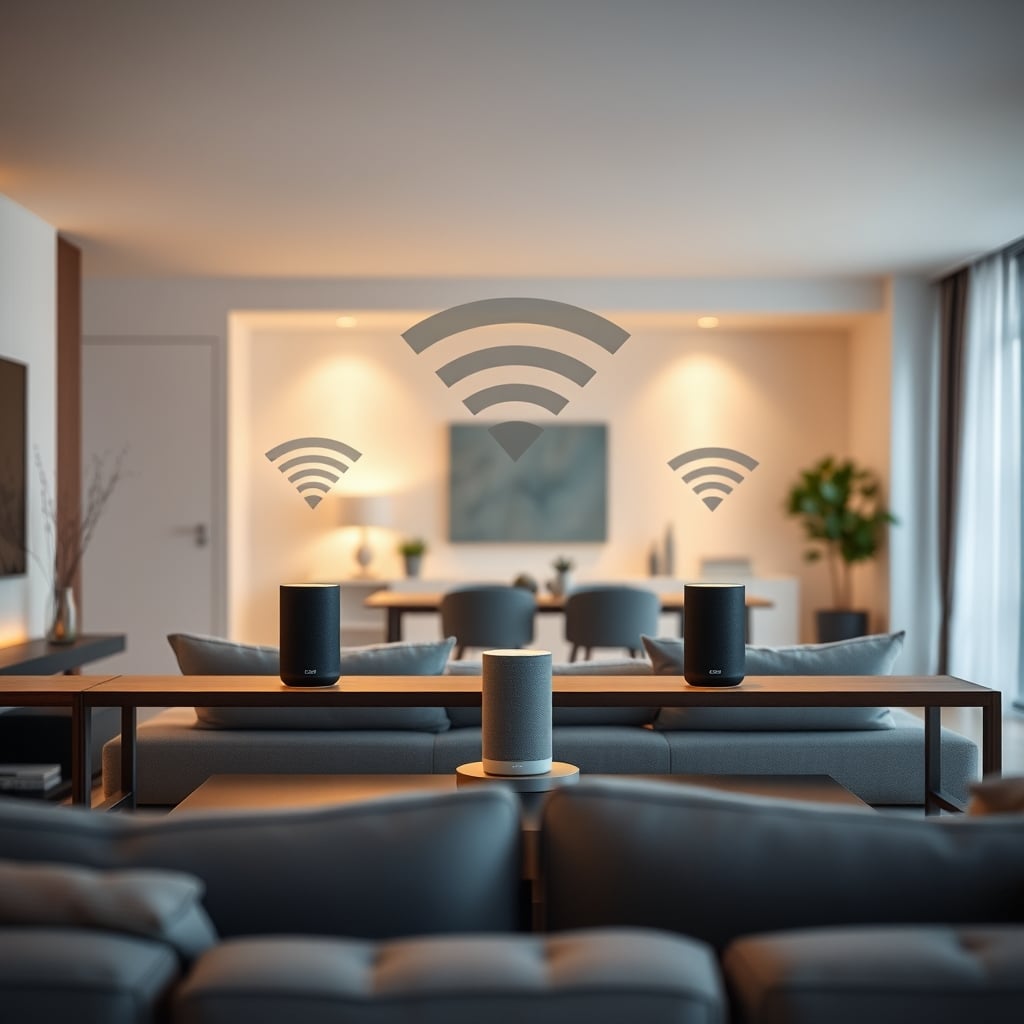
- Two Echo Dots in the living room configured as a stereo pair
- One Echo Dot in the kitchen (mono)
- Both grouped together
This gives you surround sound in one room and mono in another, all under one group. Setup varies by platform check your app for “stereo pair” or “link speakers” options.
Conclusion: Getting Multiroom Right
Multiroom smart speaker setup boils down to three things: ecosystem consistency (pick one platform and stick with it), robust Wi-Fi (signal strength and latency matter more here than anywhere else in your home), and realistic expectations (50-150 ms sync drift is normal and imperceptible to most ears; hundreds of milliseconds means a problem).
Amazon Alexa is the practical choice for most people the setup is straightforward, the hardware is affordable, and latency is solid. Google Home works well if you’re already cast-focused. Apple HomePod delivers the tightest sync on spec but demands ecosystem loyalty.
Start by placing speakers in your chosen rooms, testing them individually, and creating a single group. Walk around and listen. If you hear sync drift, check Wi-Fi signal on the lagging speaker. Once that’s working, you can experiment with multiple groups, automations, and advanced setups.
The system that works best is the one you’ll actually use which usually means picking whichever ecosystem you’re already deepest in, rather than chasing marginal latency improvements. Build your multiroom system there, and you’ll have whole-home audio that stays in sync and responds to voice without friction.